How to grant Internet access to LAN Devices with Ewon Edge
Navigate to https://www.ewoncloud.com and sign into your Ewon Cloud Account
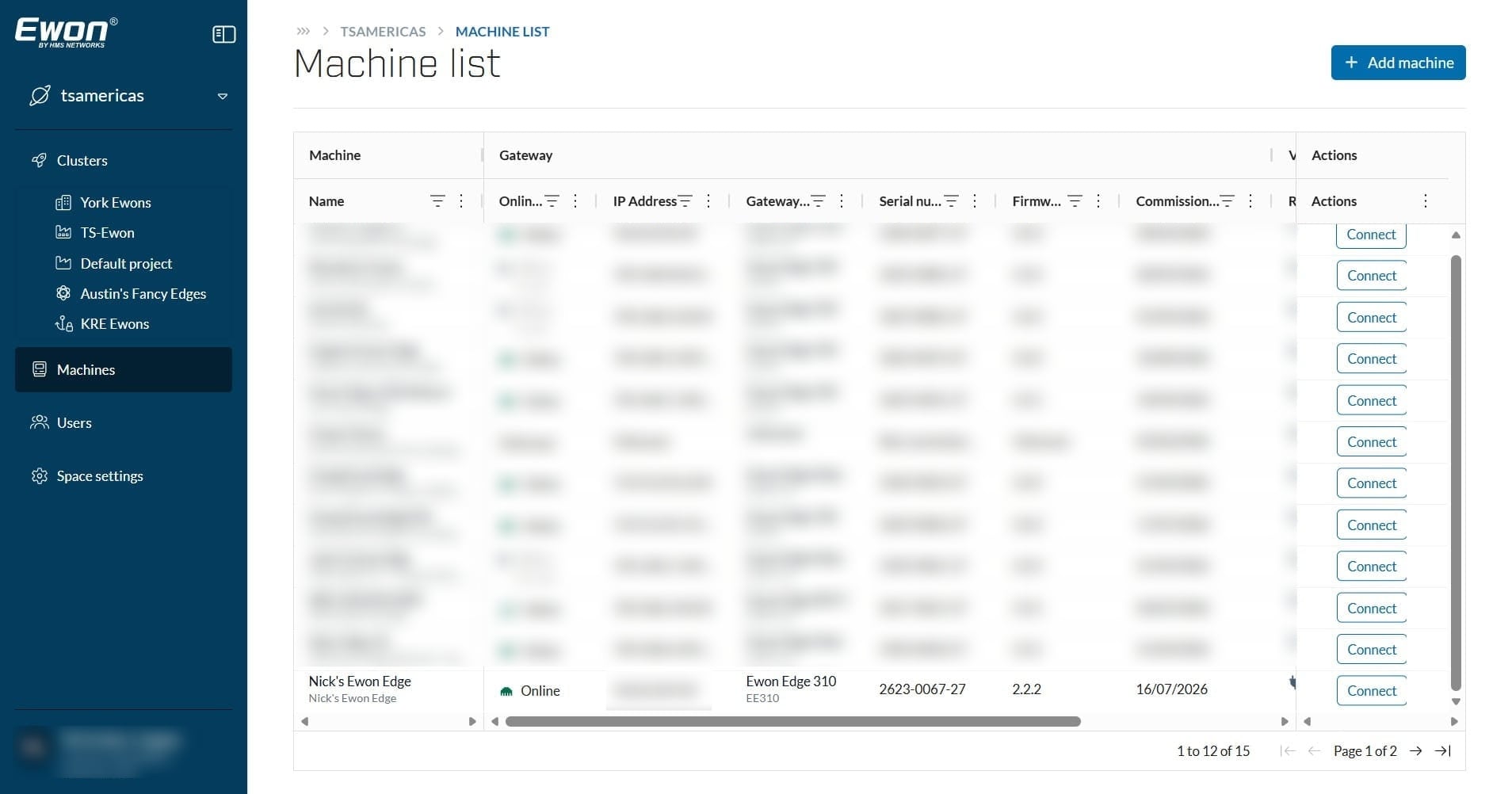
Once signed in, navigate to your Ewon Edge that is connected to the LAN device you wish to grant internet access to. This can be done in the Machine list, or through the Cluster the Ewon Edge is assigned to. Once located left-click on your Ewon Edge.
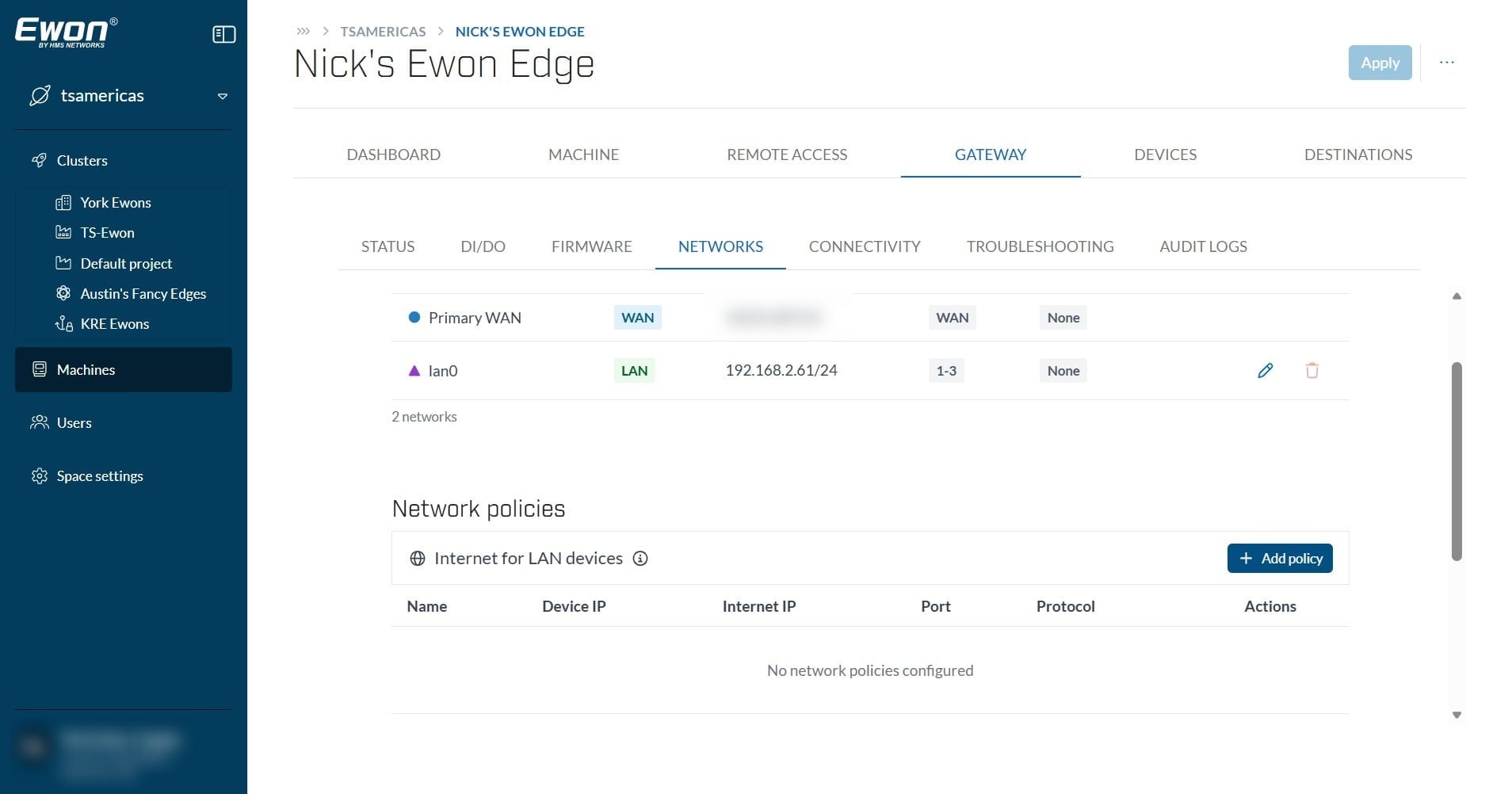
After selecting your Ewon Edge device, navigate to Gateway -> Networks to view your Edge's Network configurations. Scroll down until you see "Network policies".
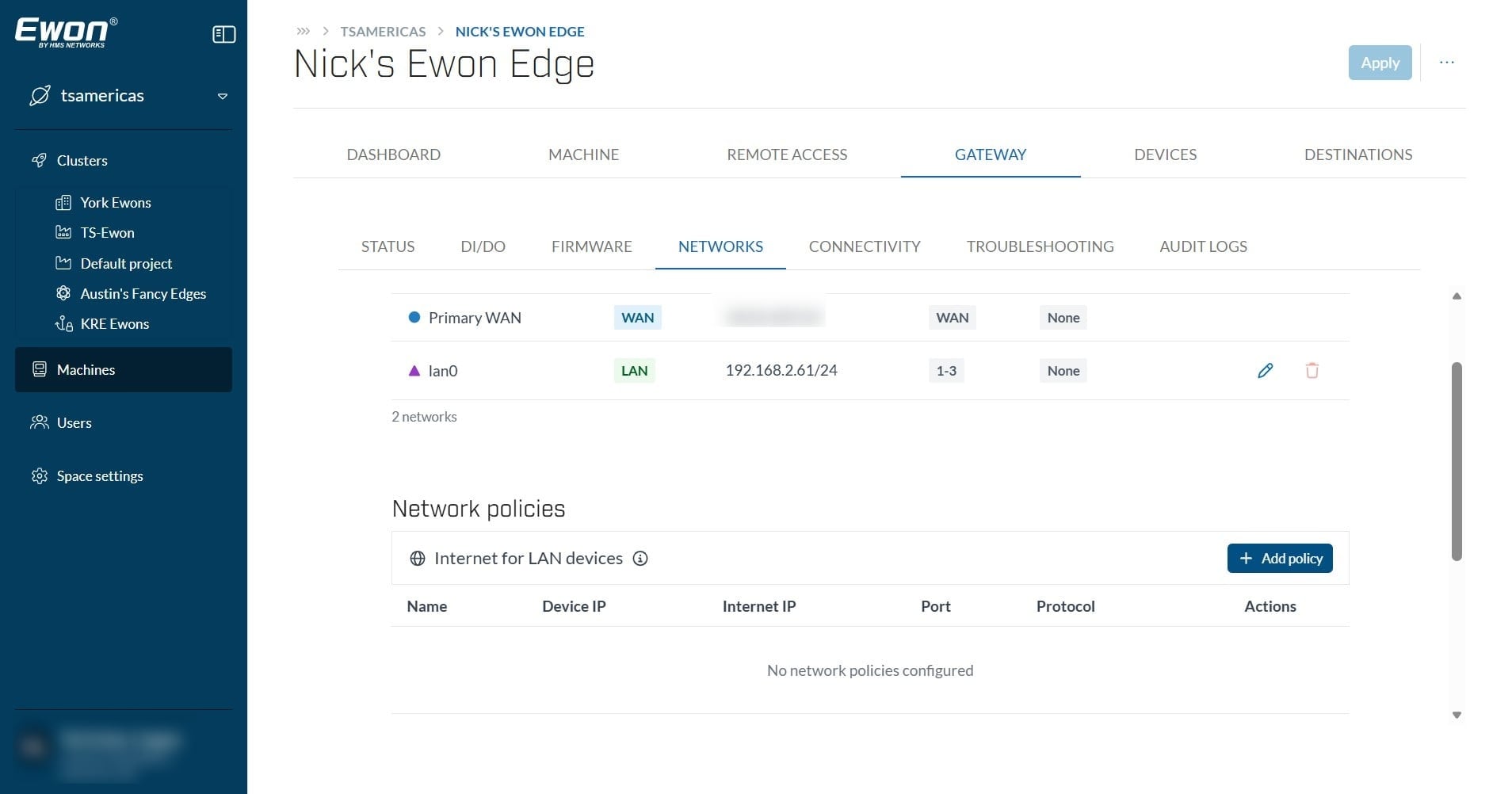
Under "Network policies", Find "Internet for LAN devices" and select, "Add policy".
Here, you will add your new policy and define which LAN device you would like to receive internet access and to where they may access. Create a name for your policy.
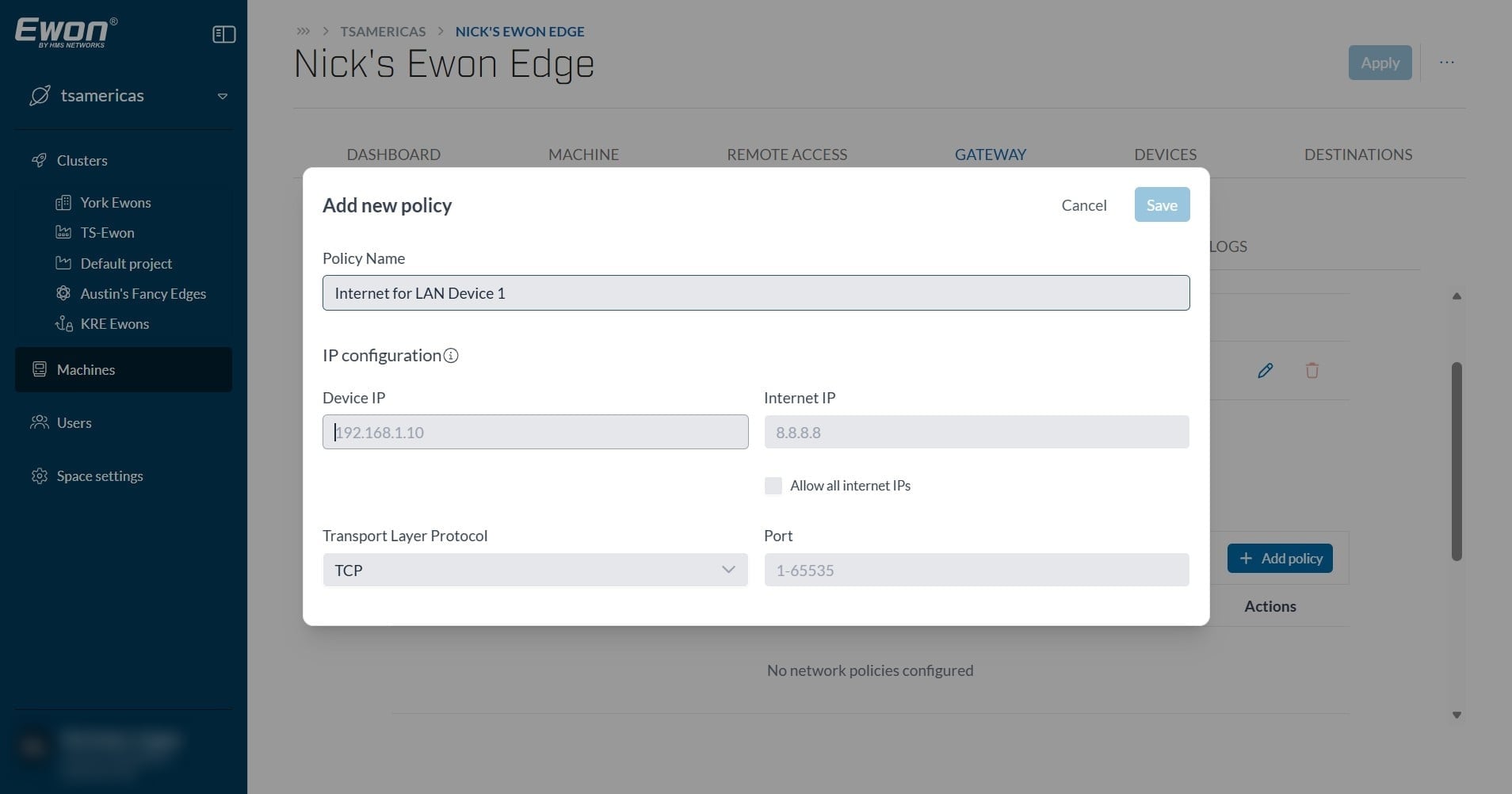
Next, you will set the Device IP address of the LAN device you are granting internet access to.
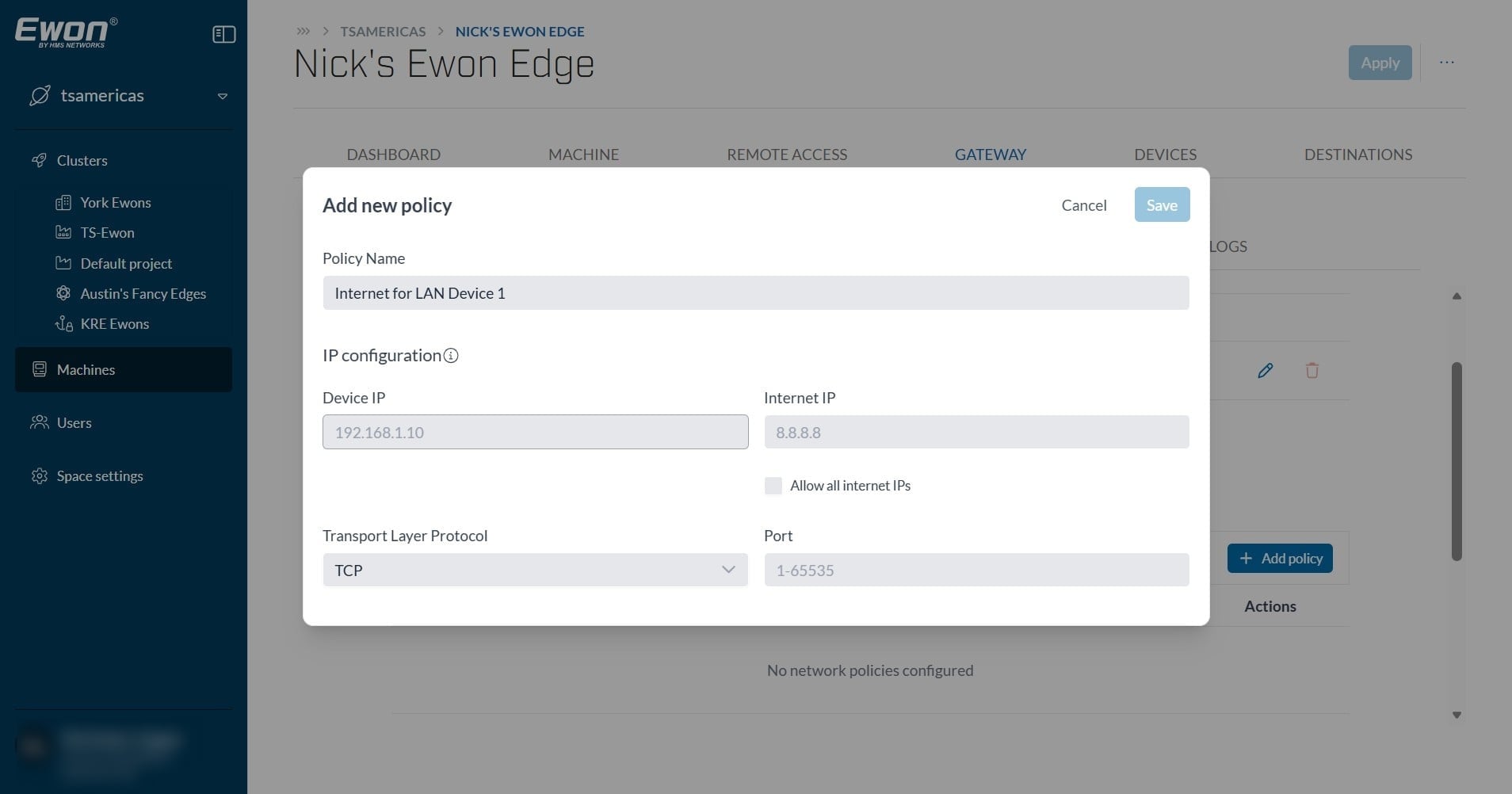
If the device IP address is within the network range of one of your LAN networks, you will see a blue message below, confirming which network range this IP address is in. For this example, my LAN network "0" is in the 192.168.2.X range.
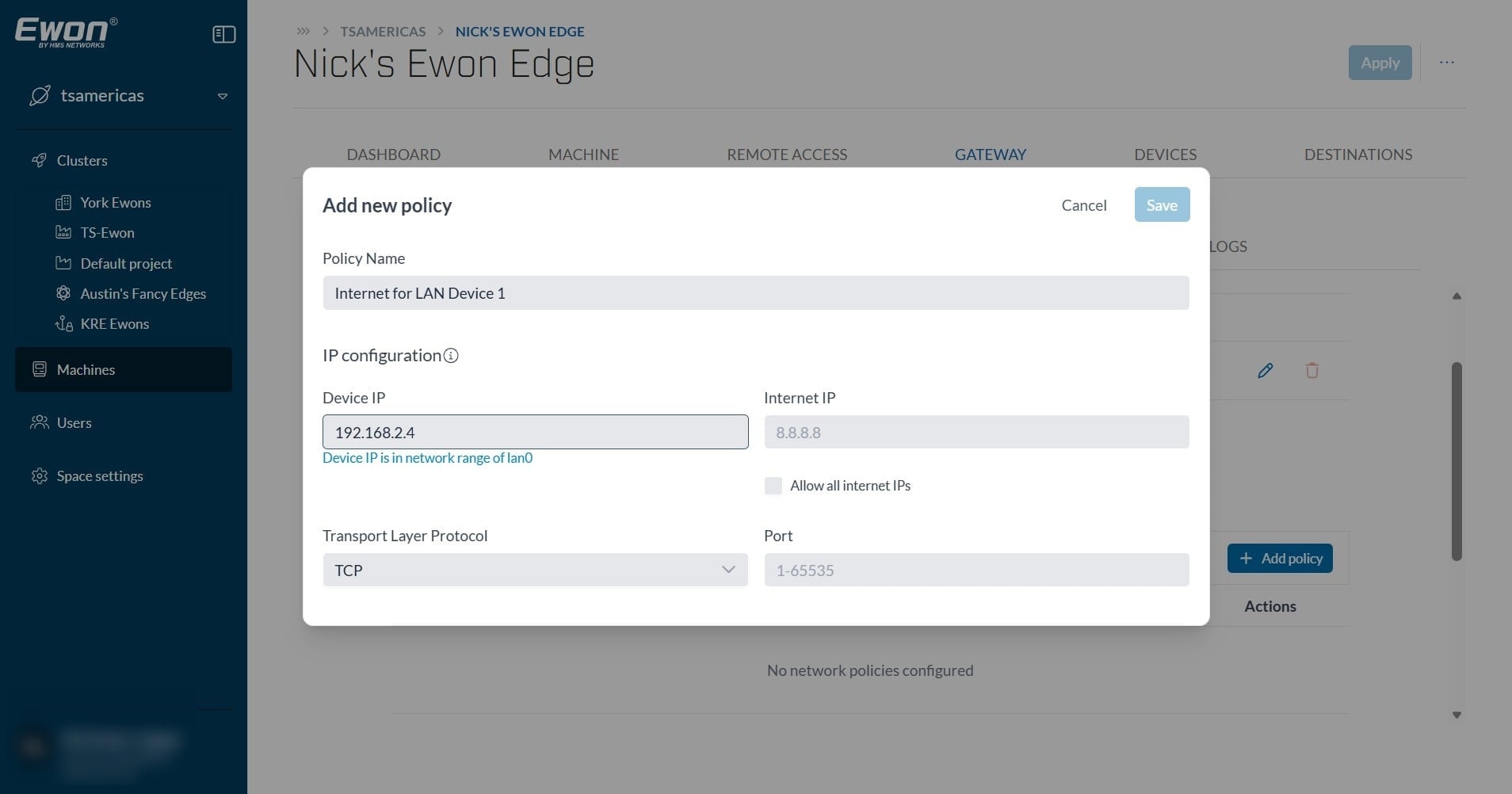
If the device IP is not within the range of any configured network, you will notice the orange text indicating so.
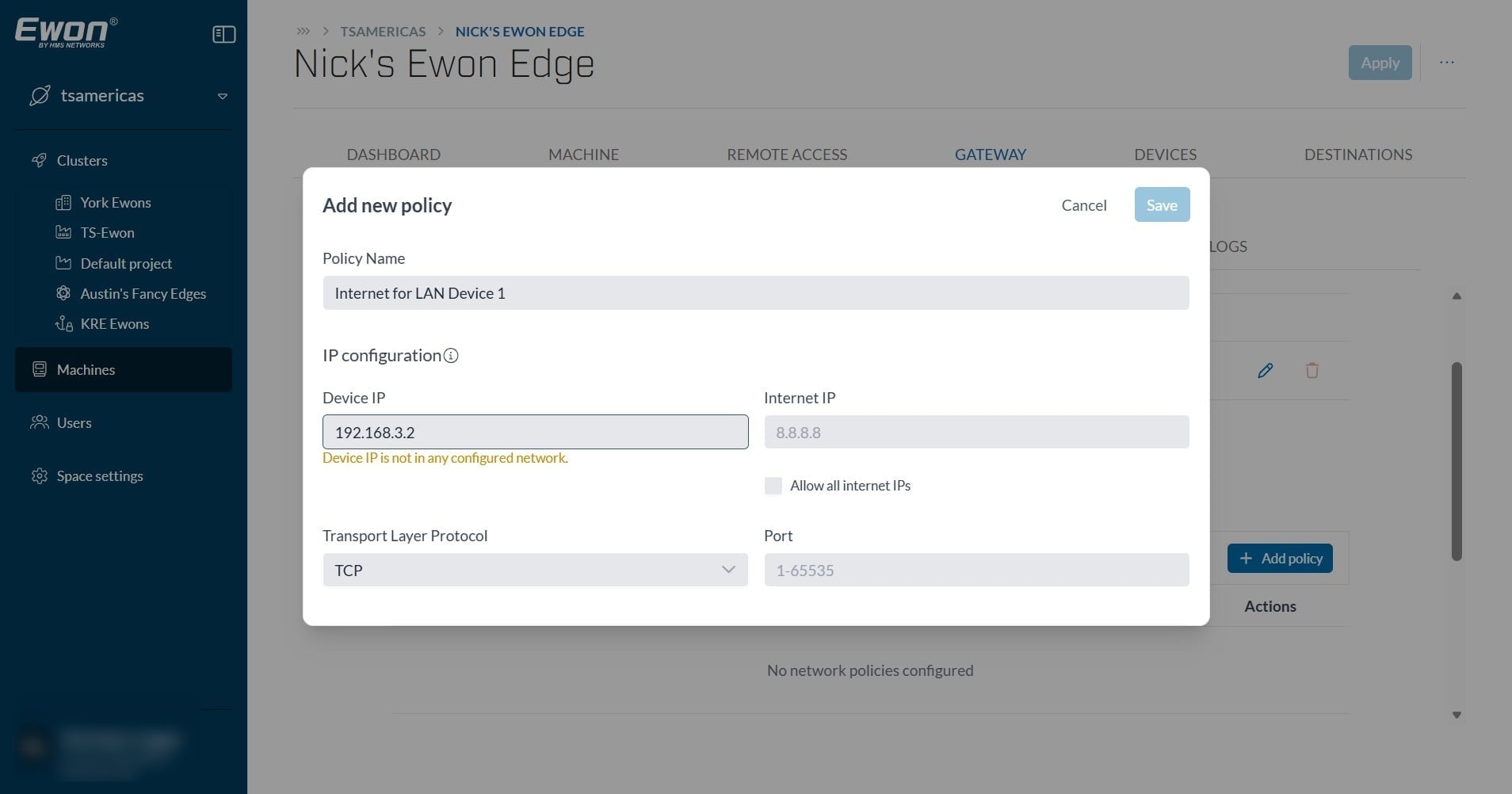
Next, you will select which Internet IP address your LAN device is allowed to reach.
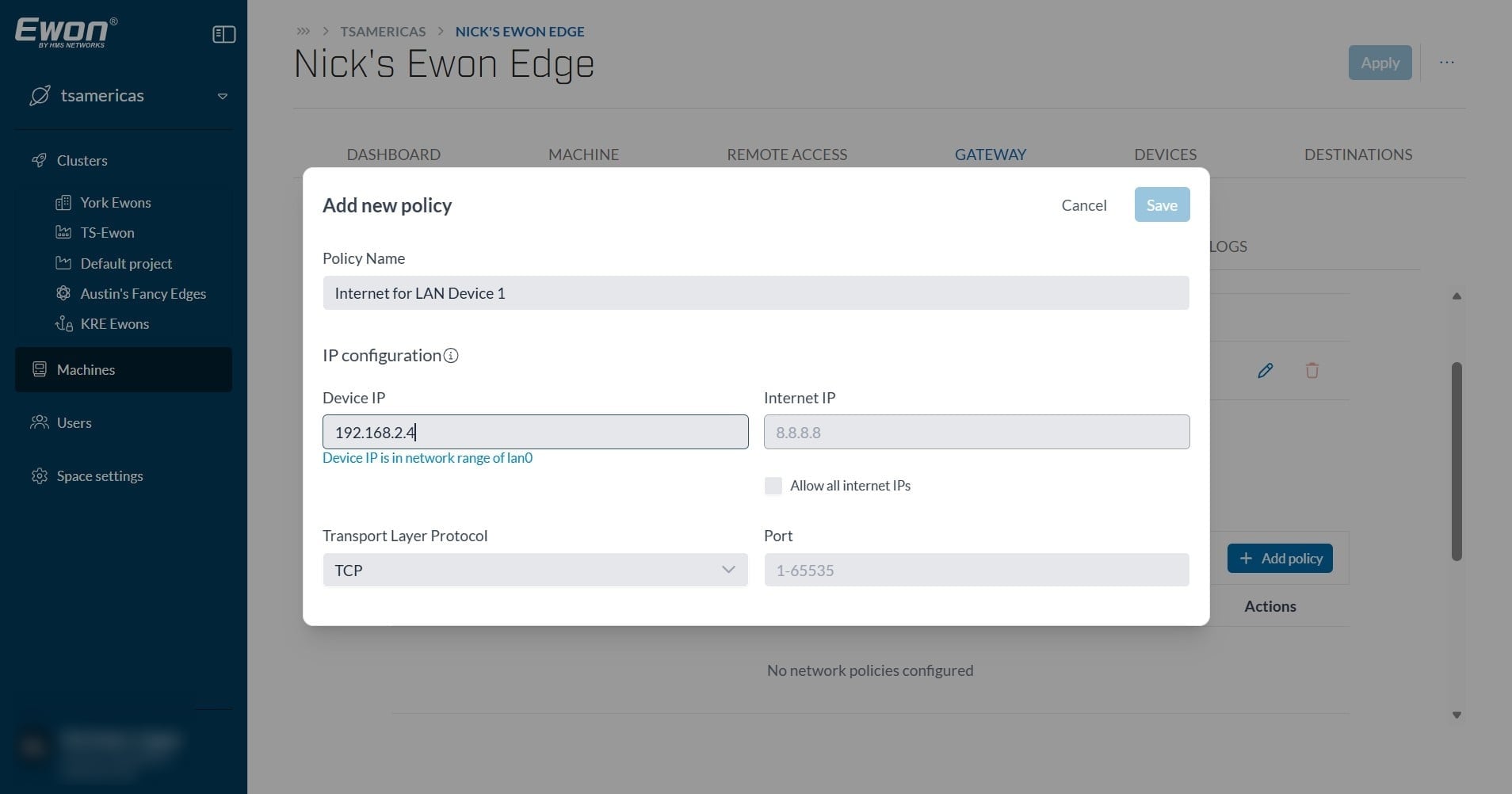
In this example, Google's DNS server 8.8.8.8 is set as the IP address my LAN device is allowed to reach.
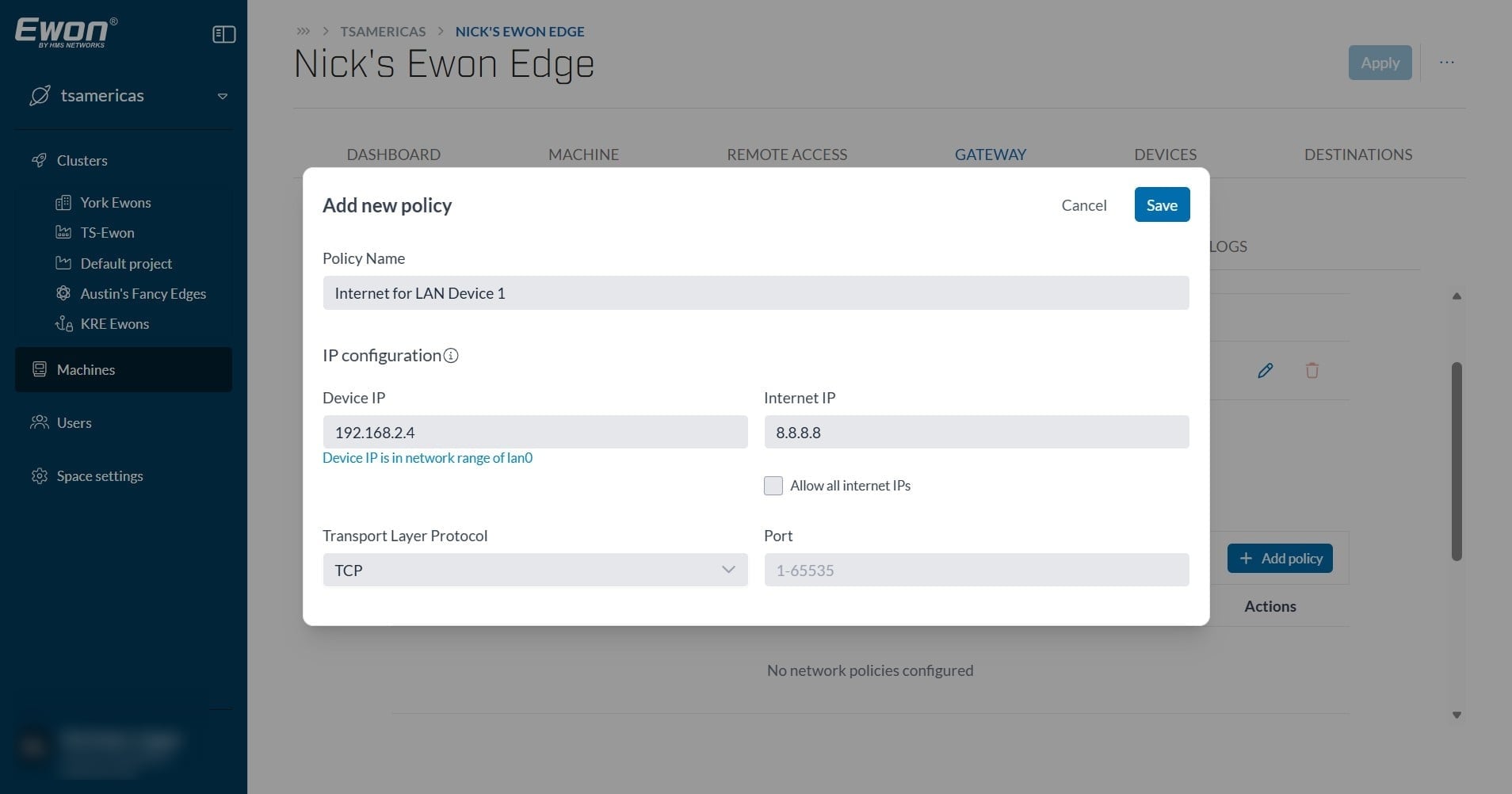
If you wish for you LAN device to reach any IP address on the internet, you can select the "Allow all internet IPs" check box.
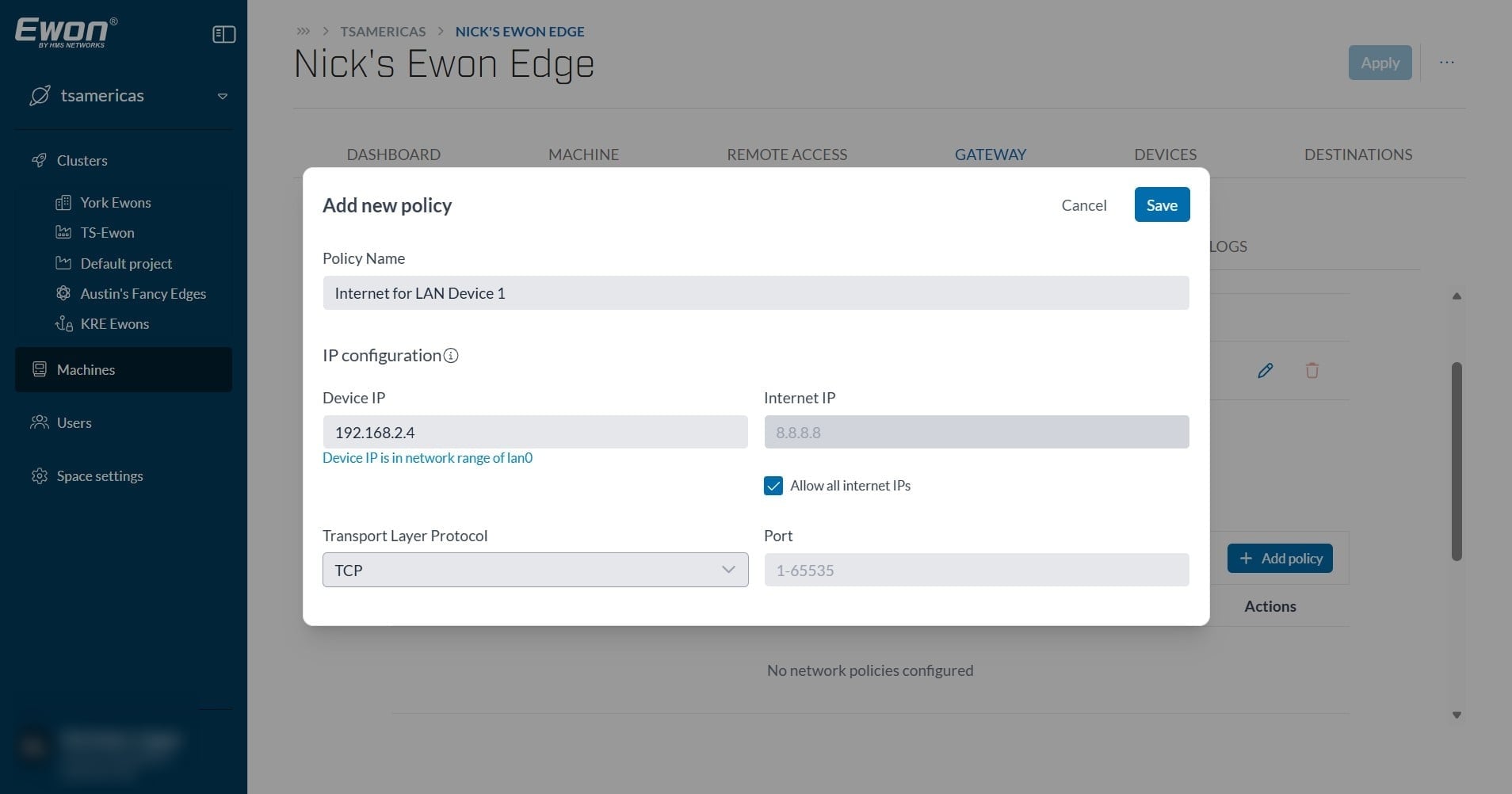
Next, select which transport layer protocol your LAN device is allowed to use for this communication to the internet.
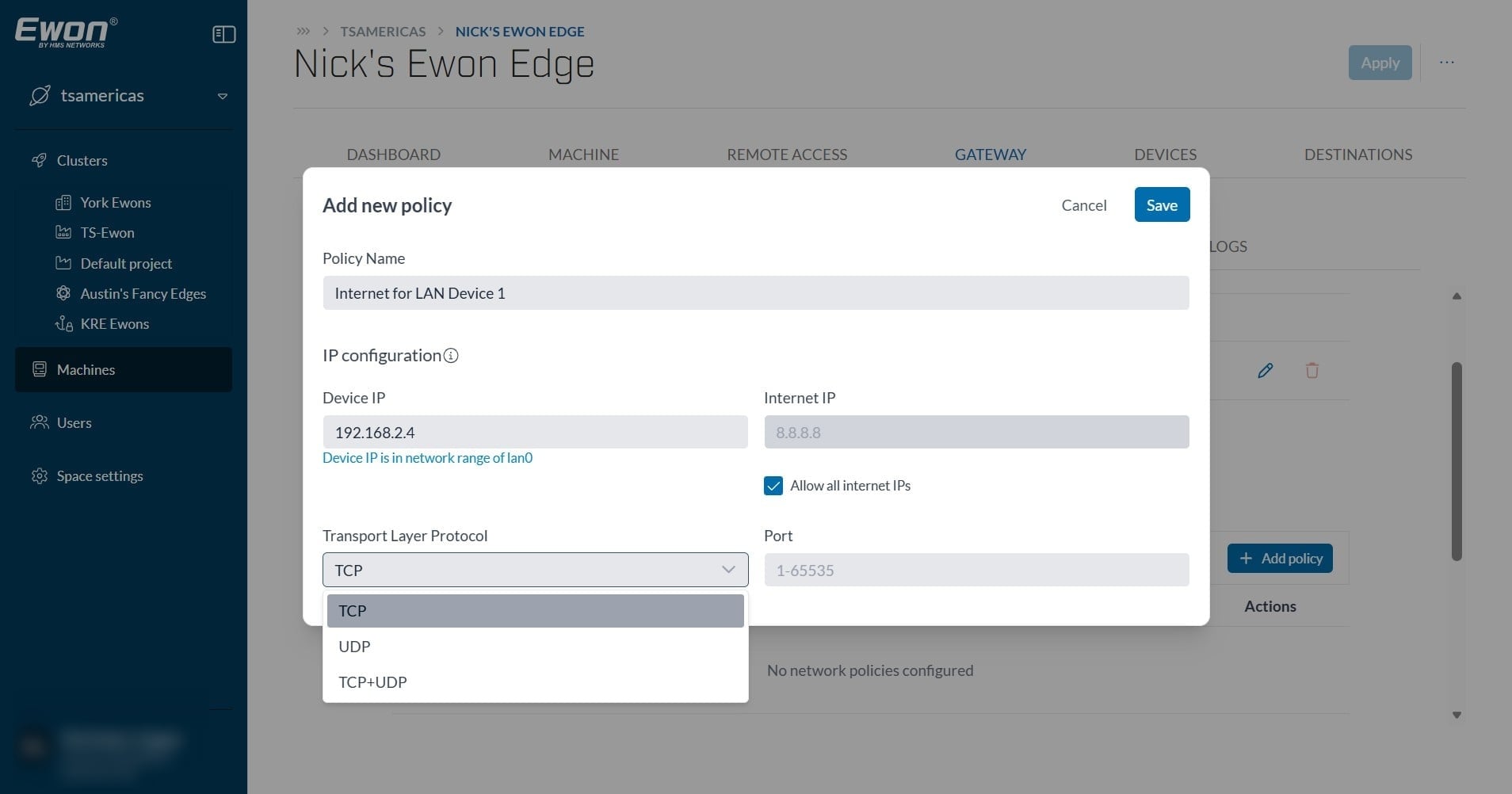
Then specify which Port this LAN device will be communicating on.
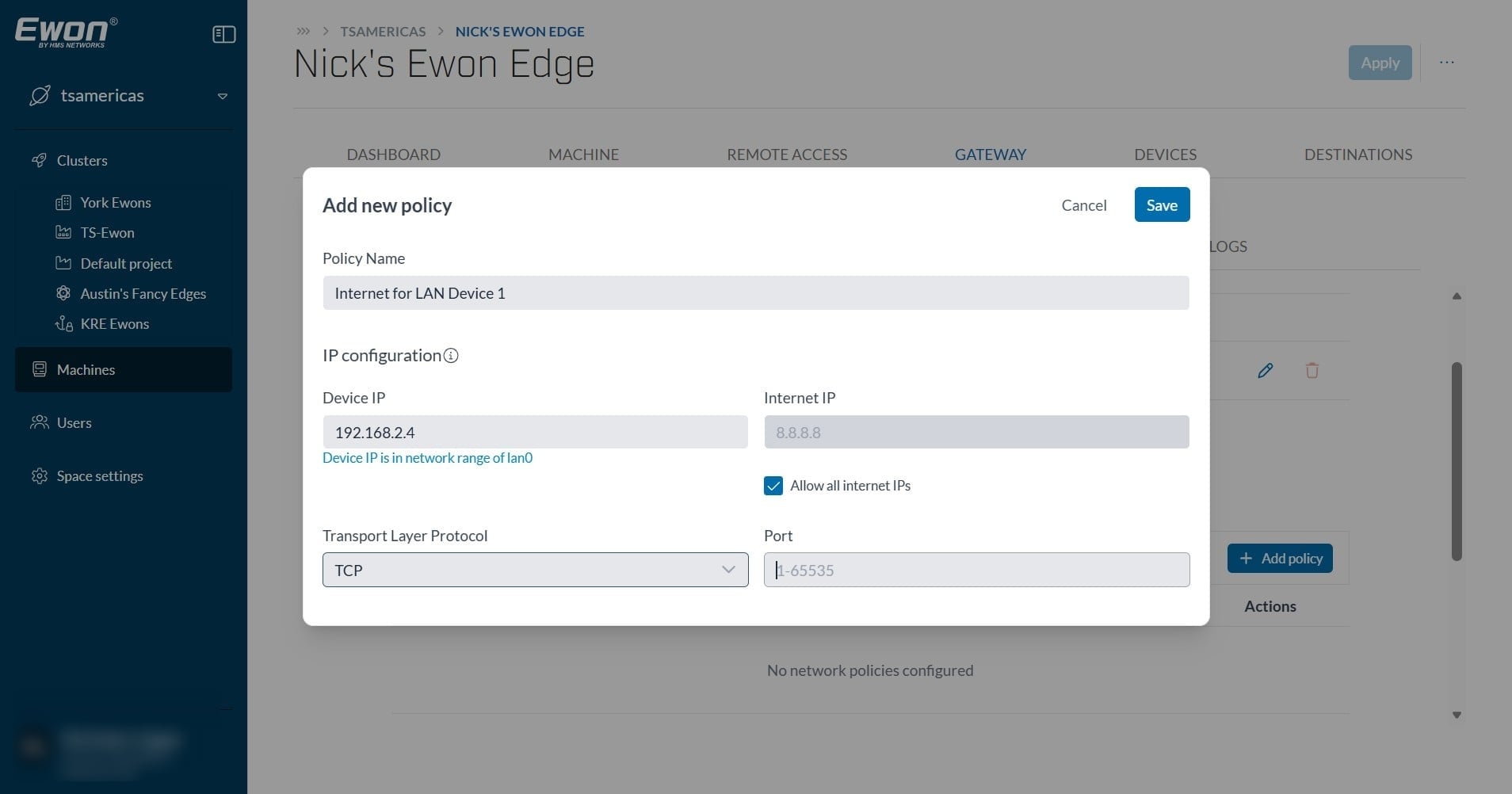
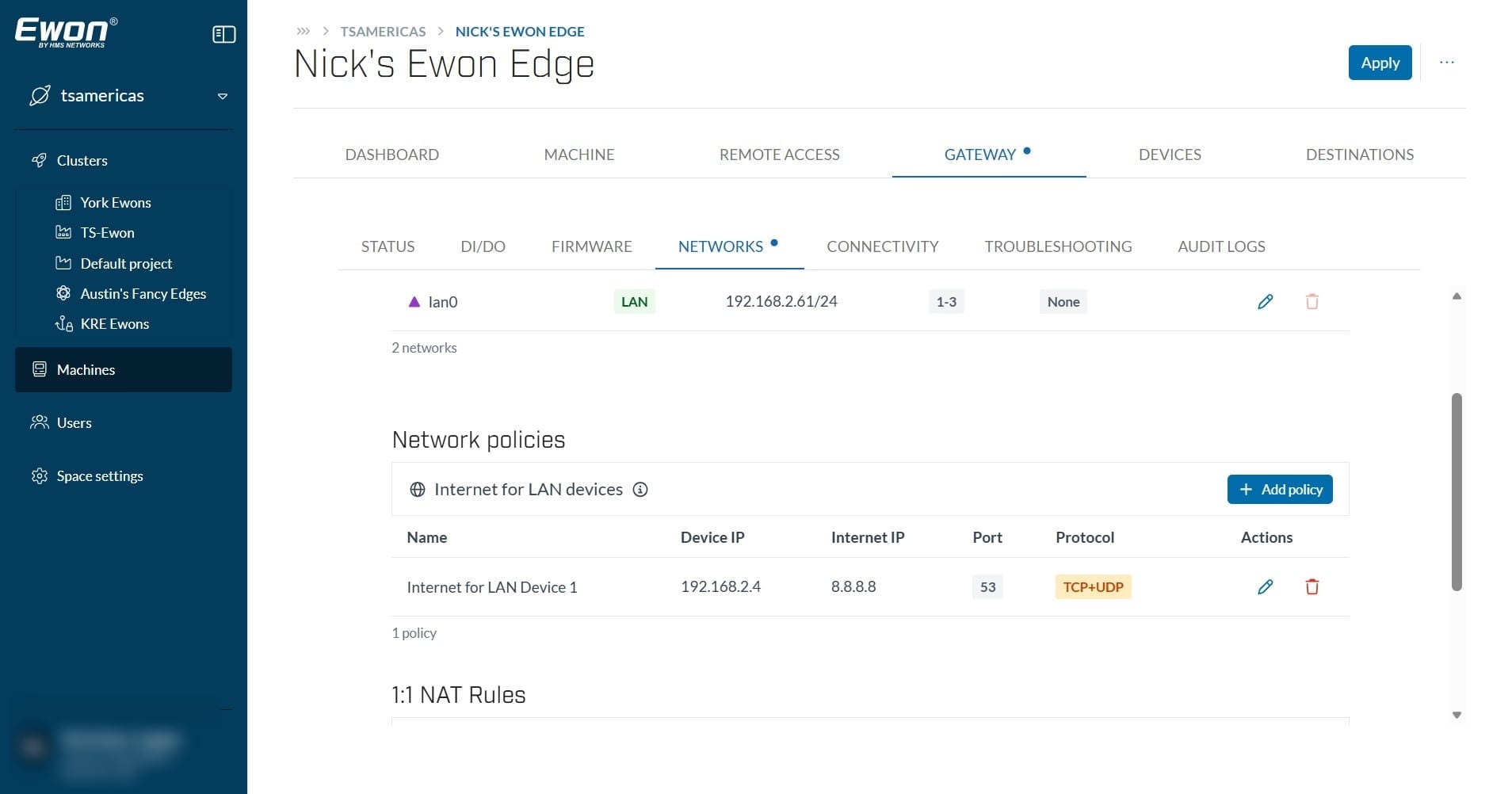
In this example, LAN device 192.168.2.4 will be able to communicate on Port 53 via TCP or UDP to internet IP address 8.8.8.8.
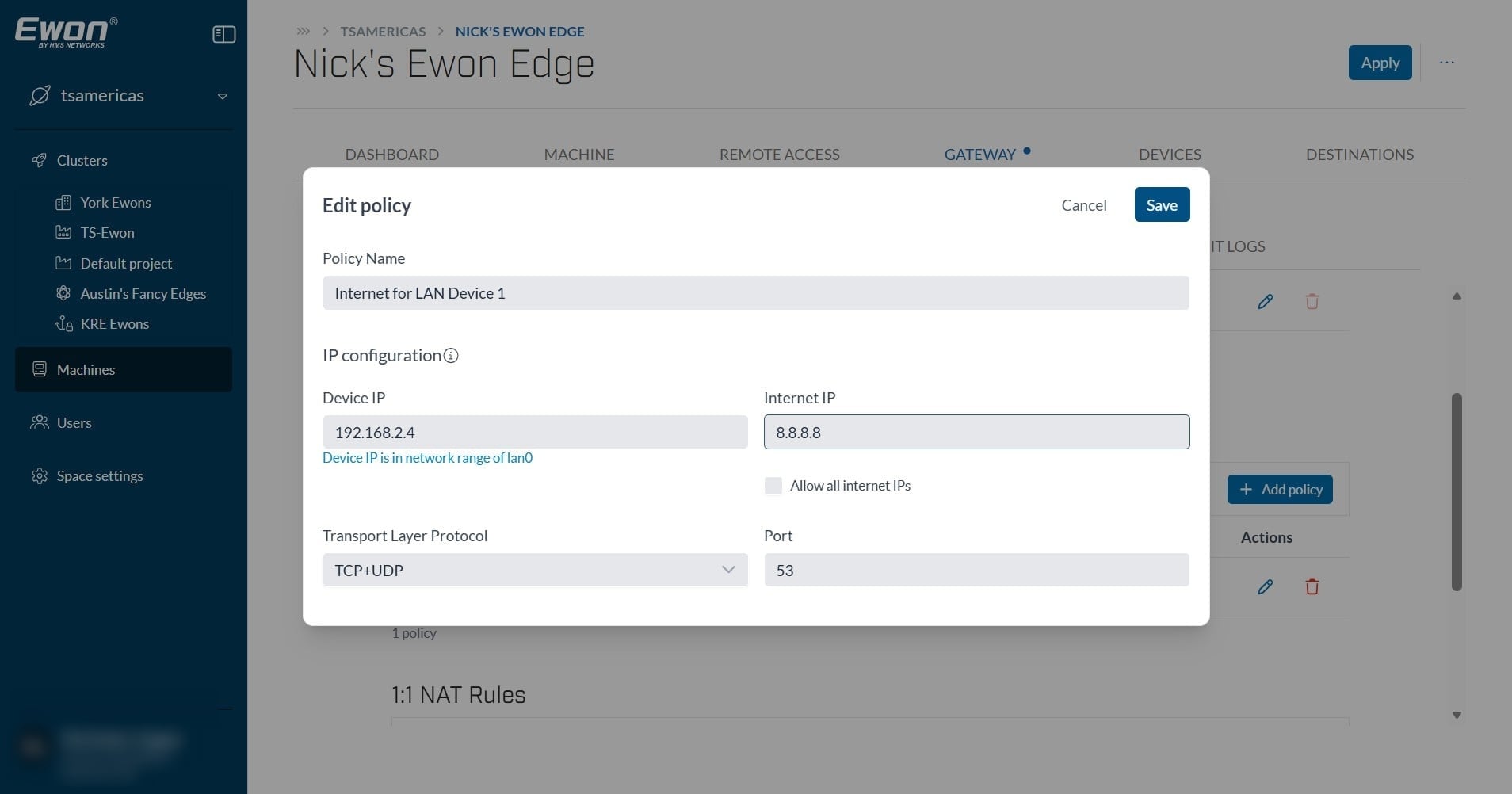
Once your policy is complete, select "save".
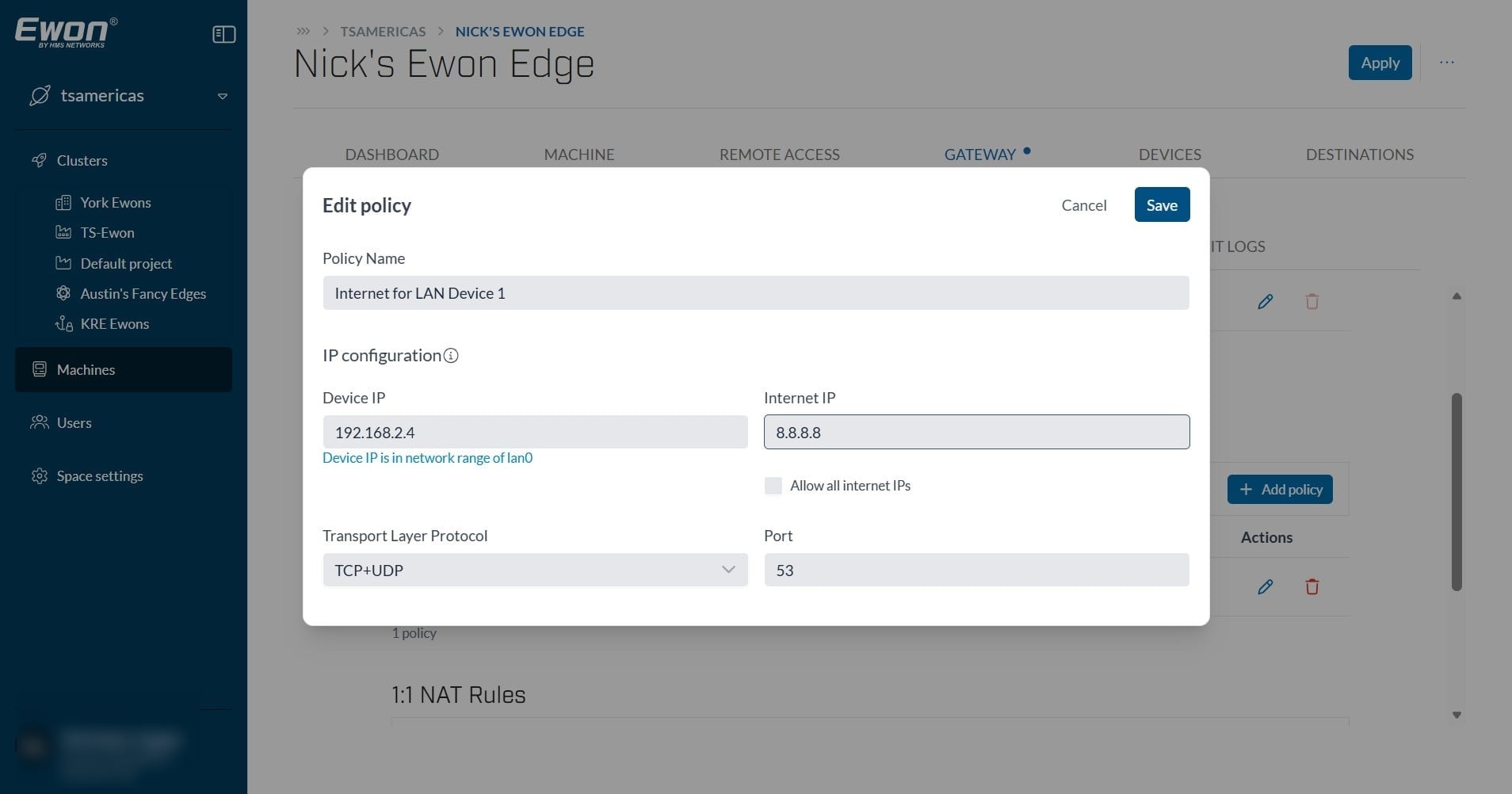
You can now see that your policy was created. If needed, you can edit this policy, or delete it under the actions section on the far right. The LAN device specified should now have internet access through the defined policy rules.