
How to import a Crimson 3.0 or Crimson 3.1 database file into Crimson 3.2
This shows how to convert an existing Crimson 3.0 database into Crimson 3.2 format by selecting a compatible target model, so the project opens and can be edited in the current software version.
Open the File menu in the upper-left corner of the Crimson 3.2 window.
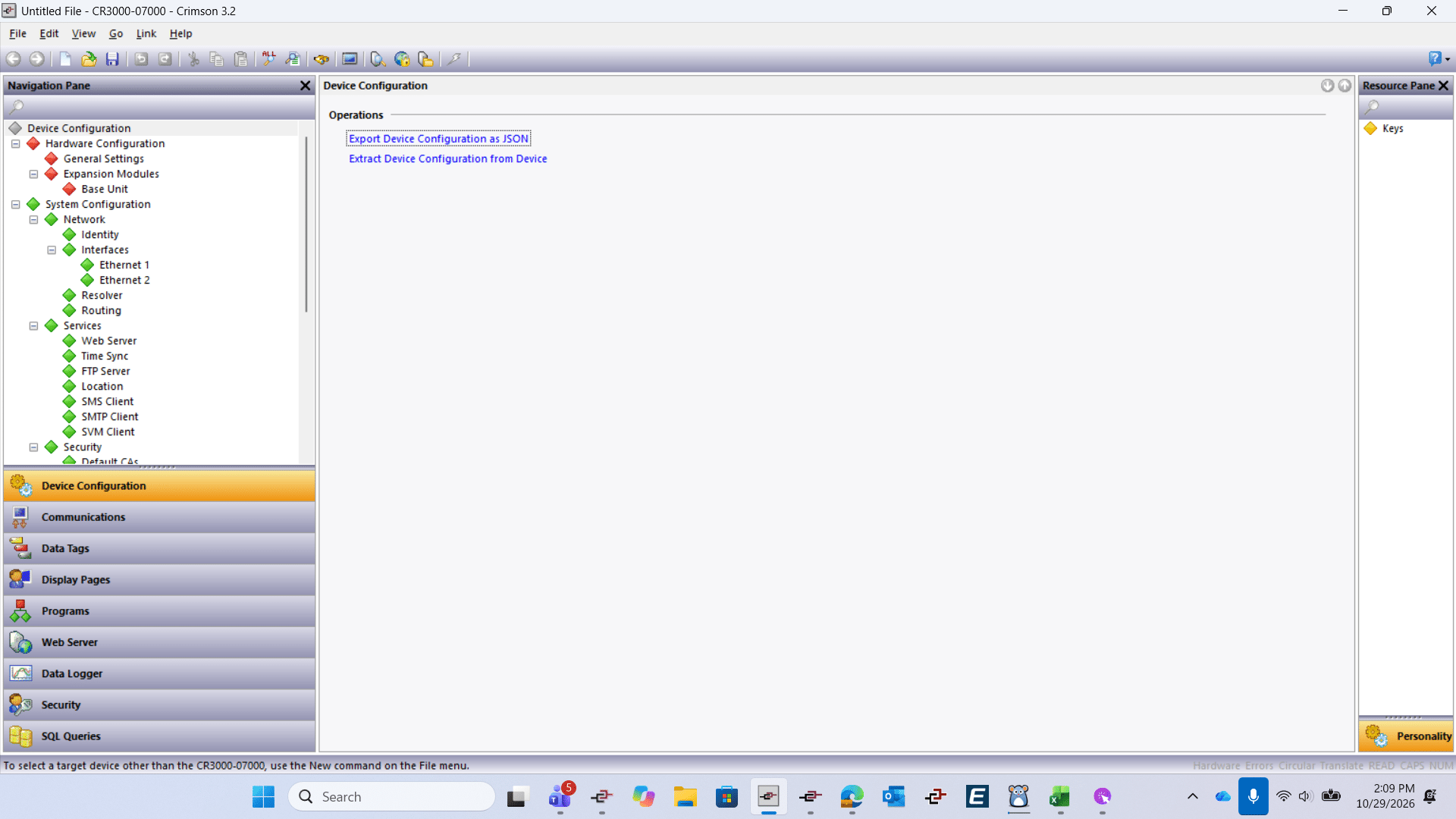

From the File menu, select Open or Ctrl+O.
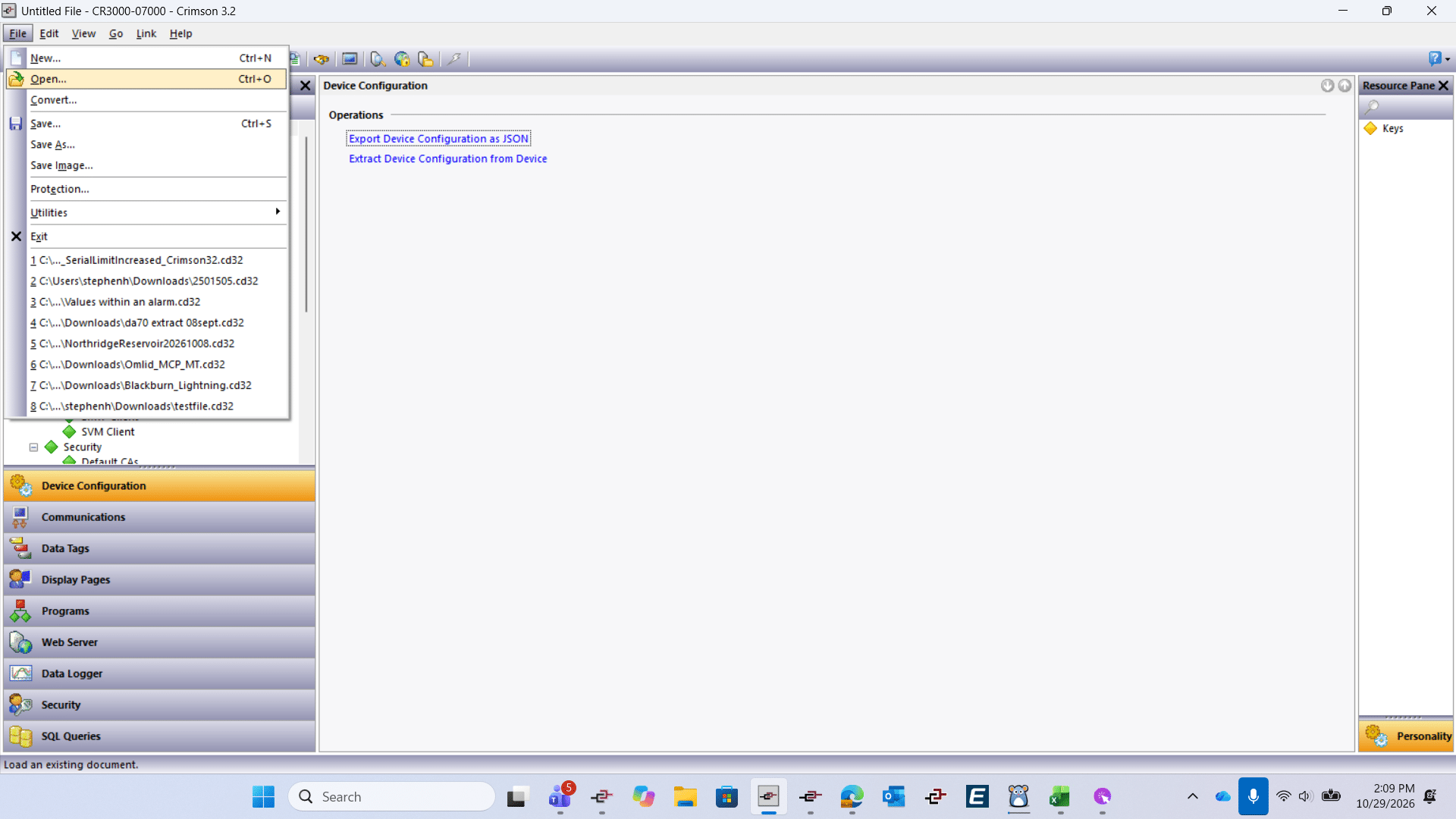
In the Open File dialog, open the Files of type drop-down list, which currently shows Crimson 3.2 Database (*.cd32).
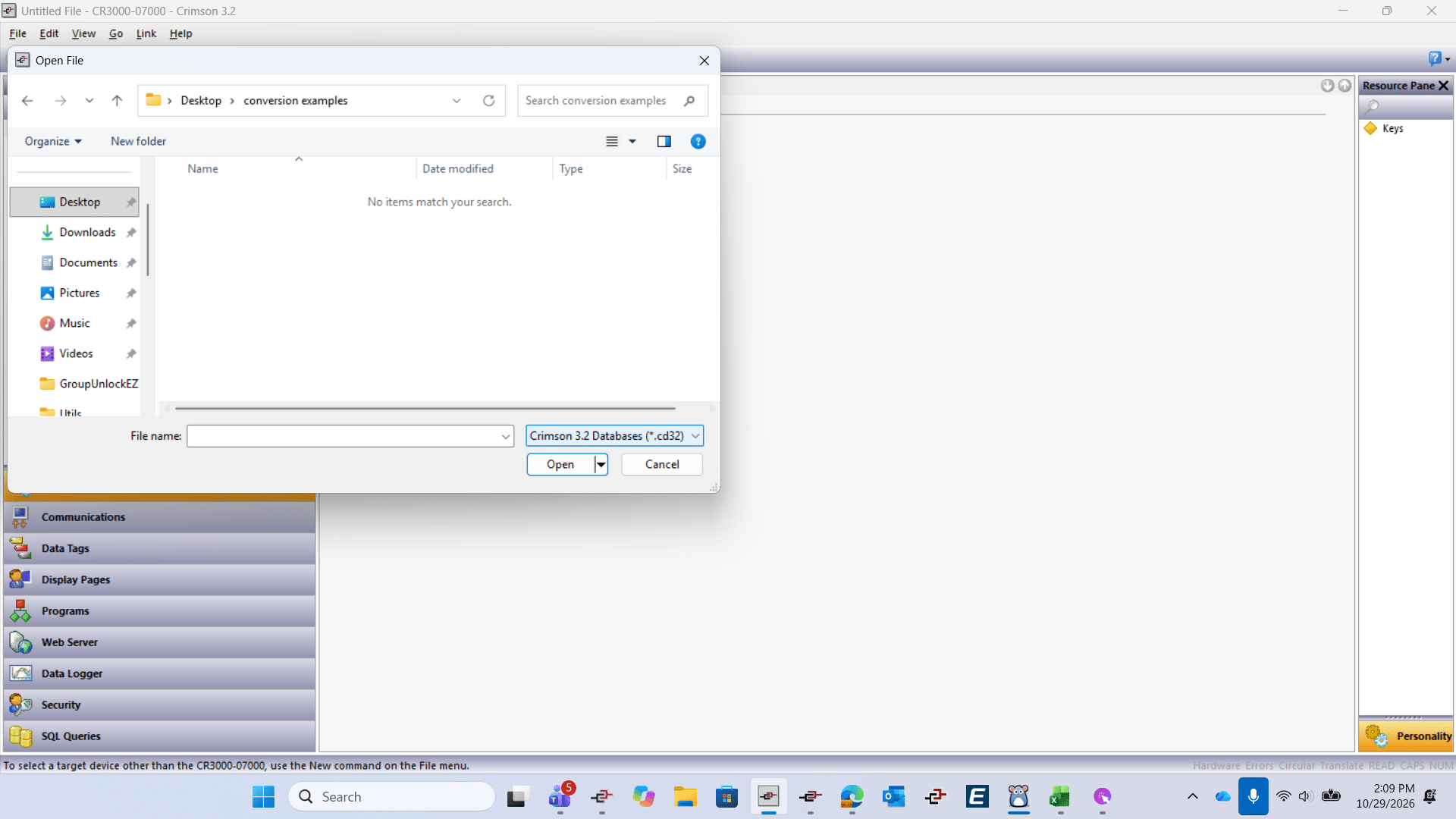
From the list, select Crimson 3.0 Databases (*.cd3) so the dialog displays your 3.0 files. You can also select Crimson 3.1 Databases(*.cd31) if you are trying to open/convert a 3.1 file into 3.2.
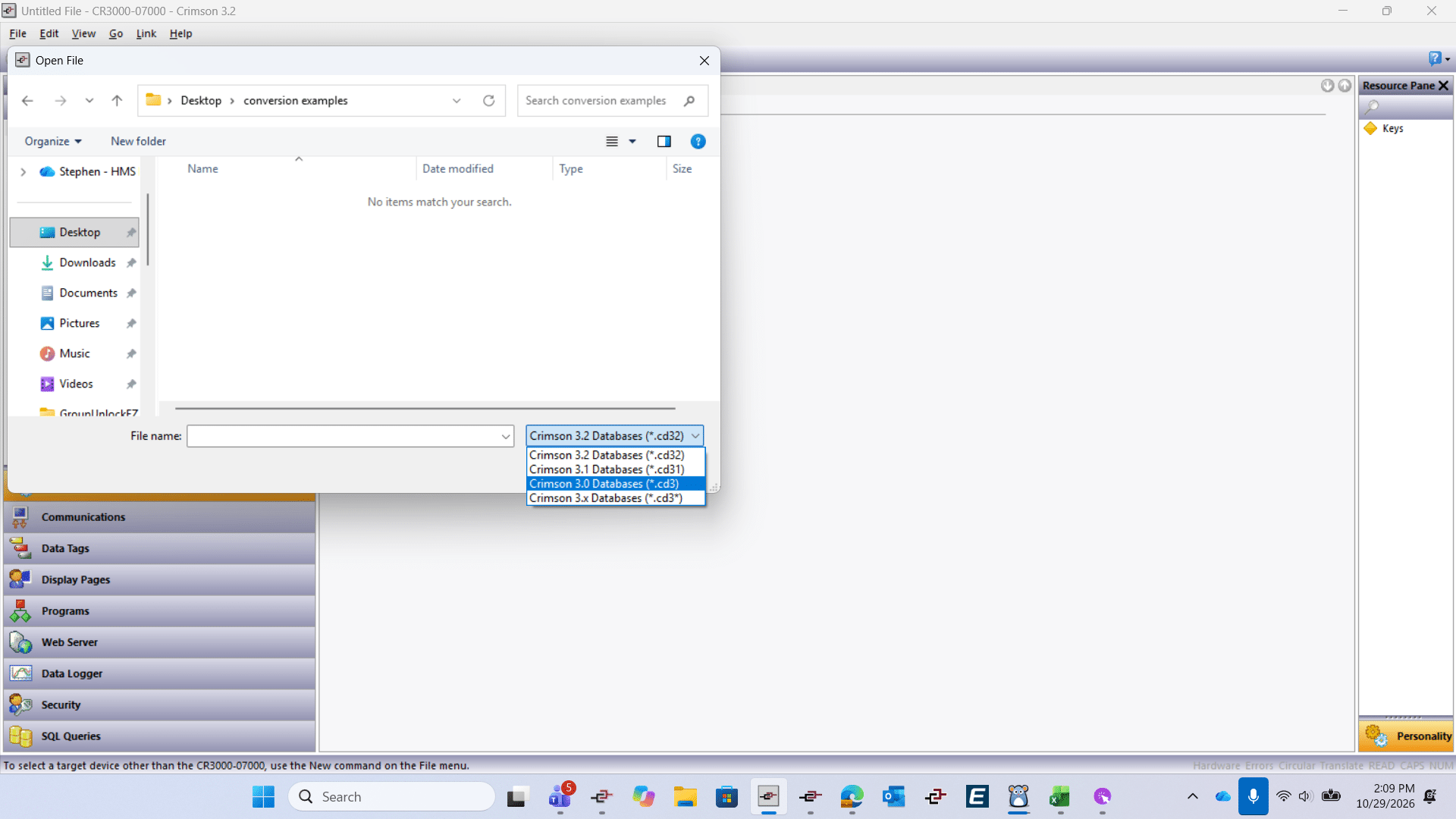
Select the file you are trying to convert/open.
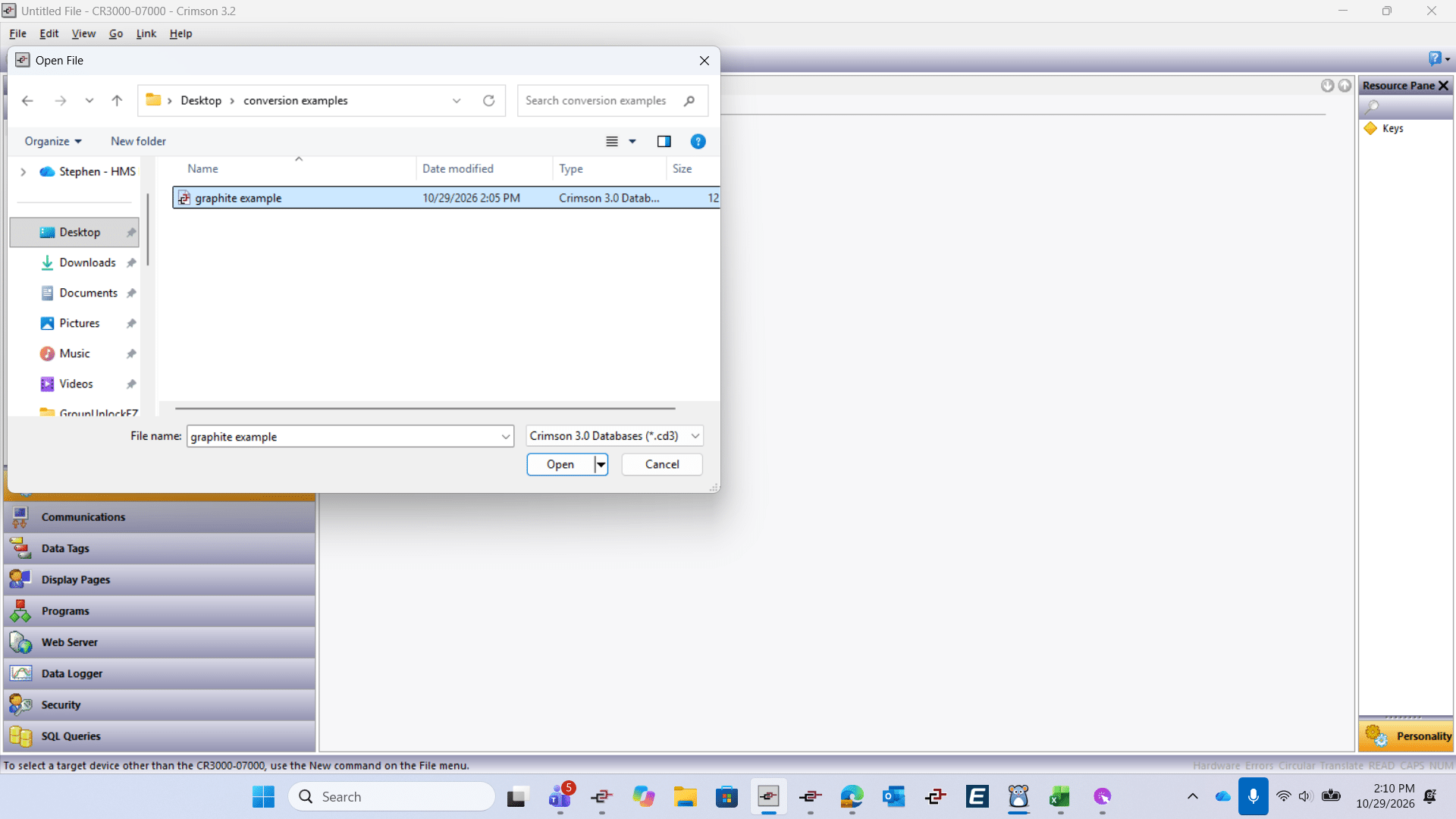
Click Open to load the selected file.
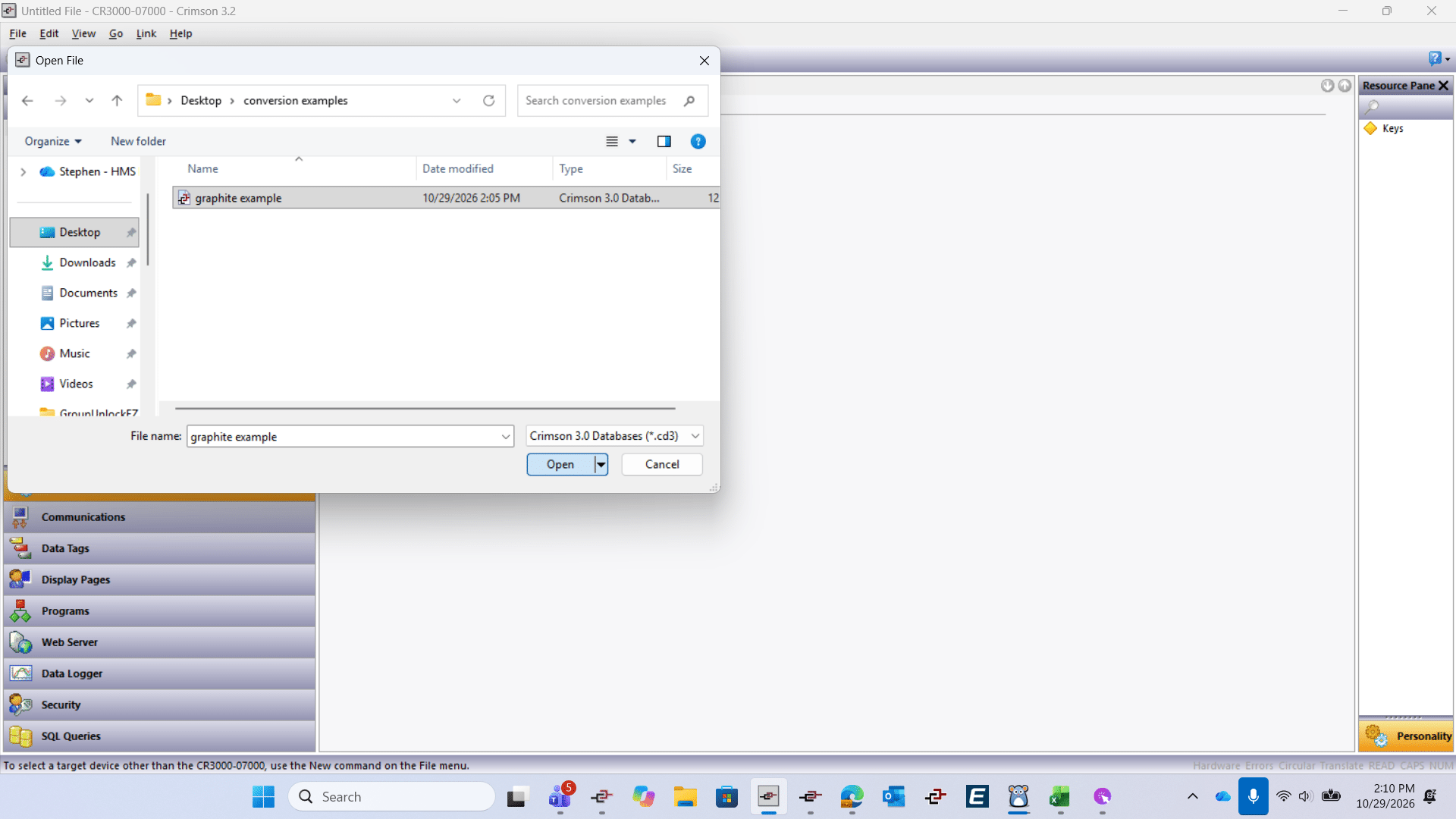
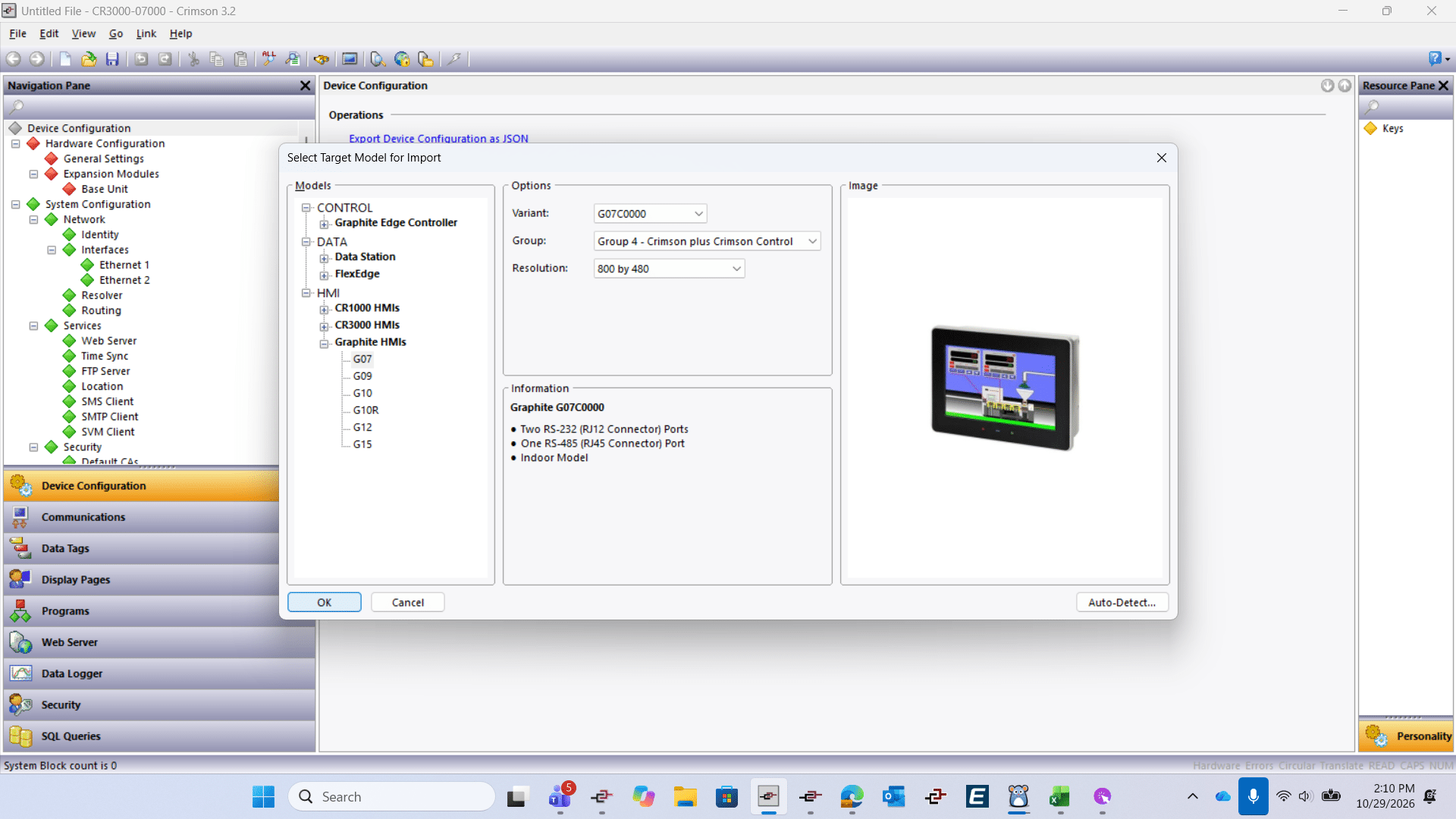
In the Select Target Model for Import dialog, choose your model in the Models tree, such as G07 under Graphite HMIs. Only 3.2-compatible models appear, so if your unit is missing, it does not support 3.2.
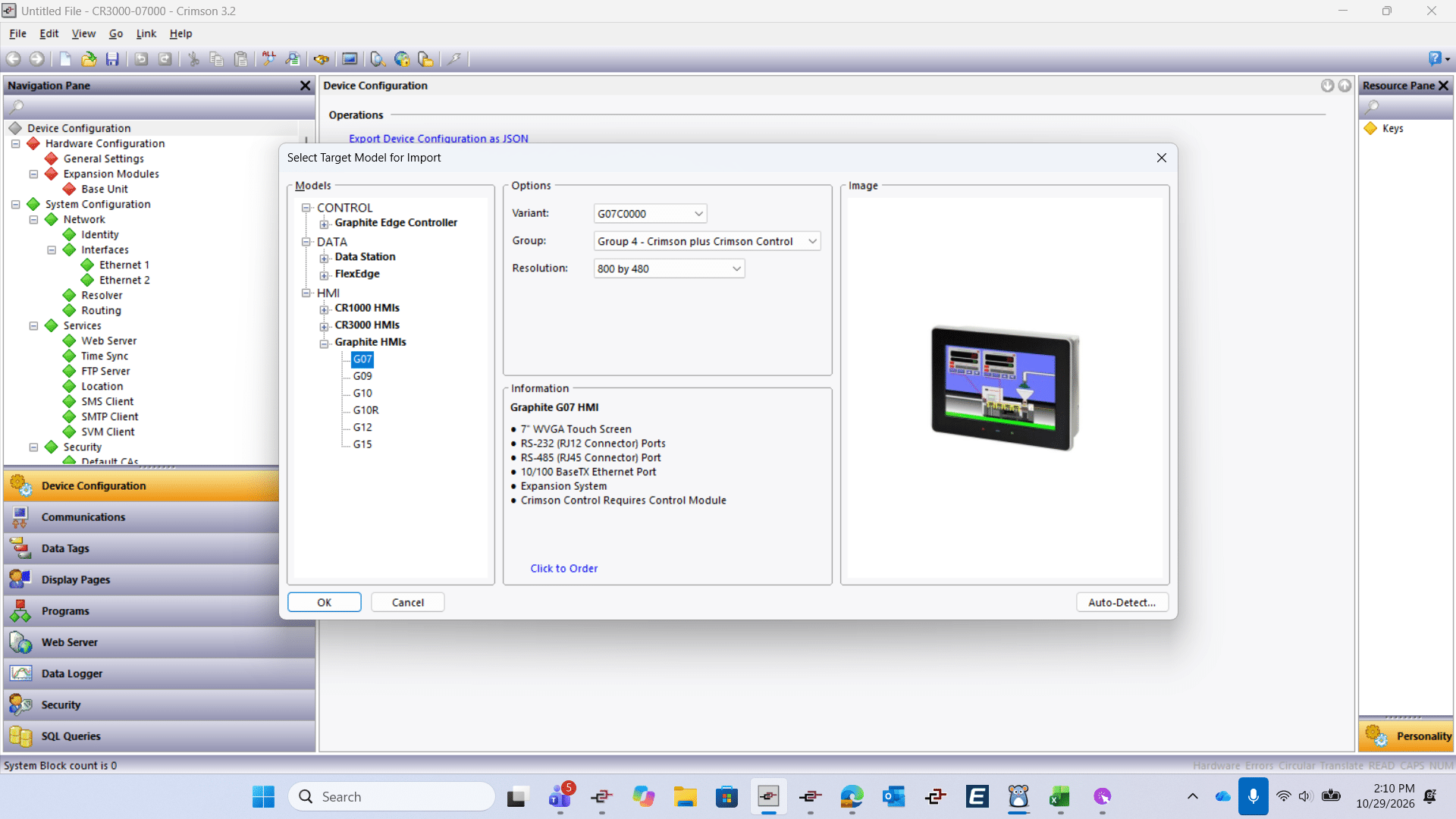
Open the Variant: drop-down list and select the exact model for your unit, such as G07C0000.
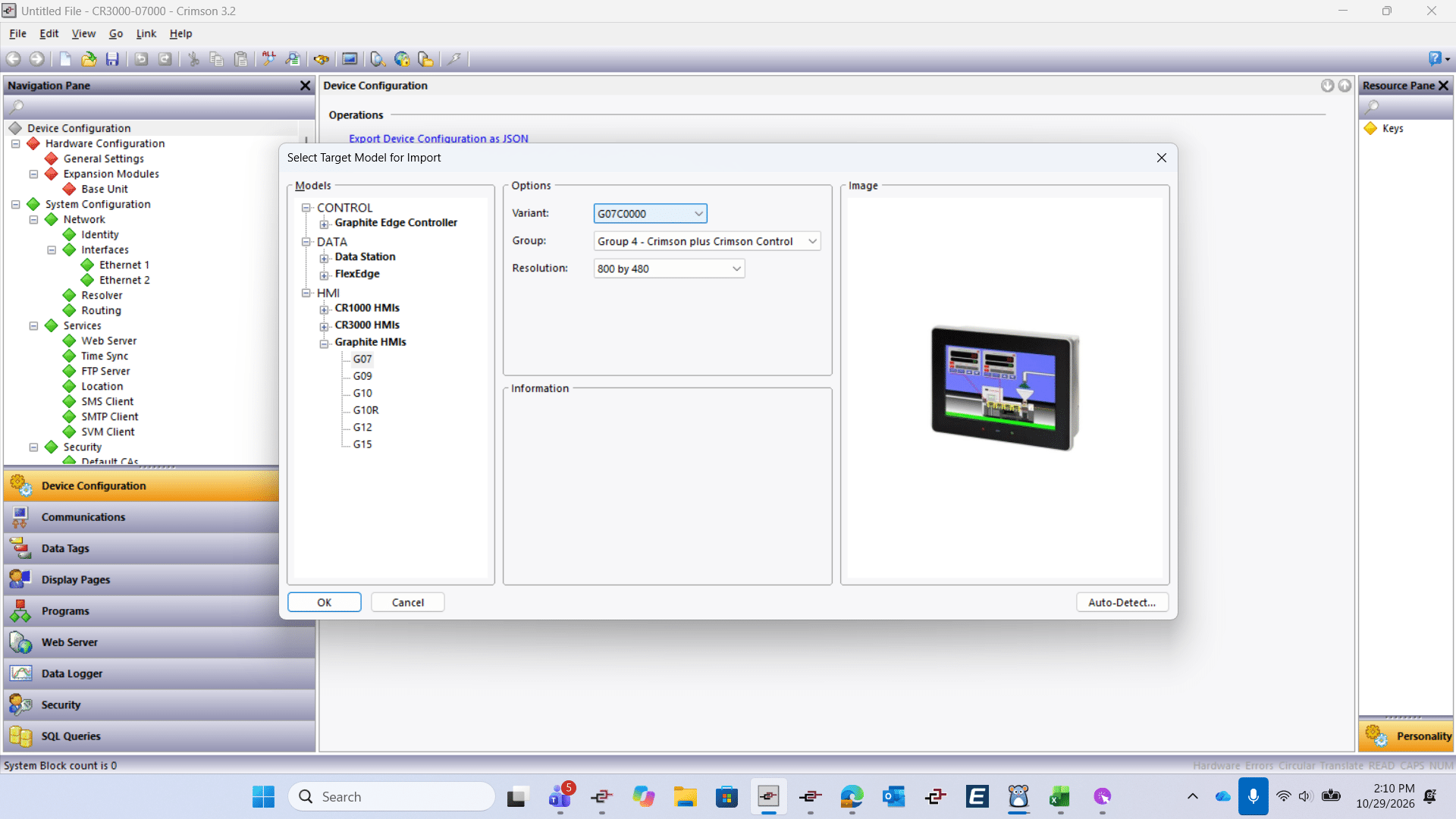
Click OK to confirm the target model and begin the import.
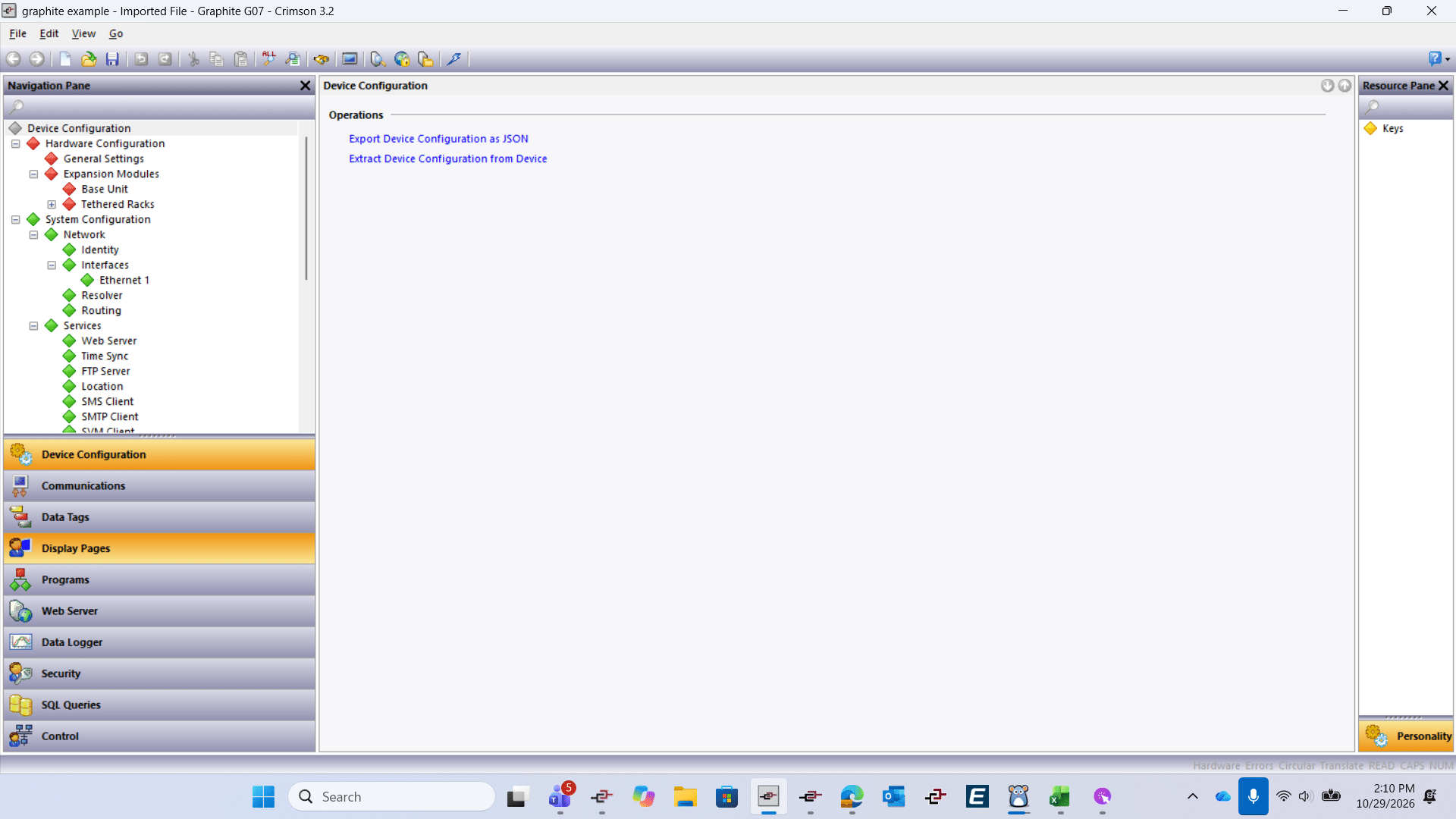
Your file has been successfully converted and opened in Crimson 3.2, as shown by the title bar reading graphite example - Imported File - Graphite G07 - Crimson 3.2.
Not finding what you are looking for?
Reach out to our support team