
S7 Plus Driver - Using import functions to create tags...
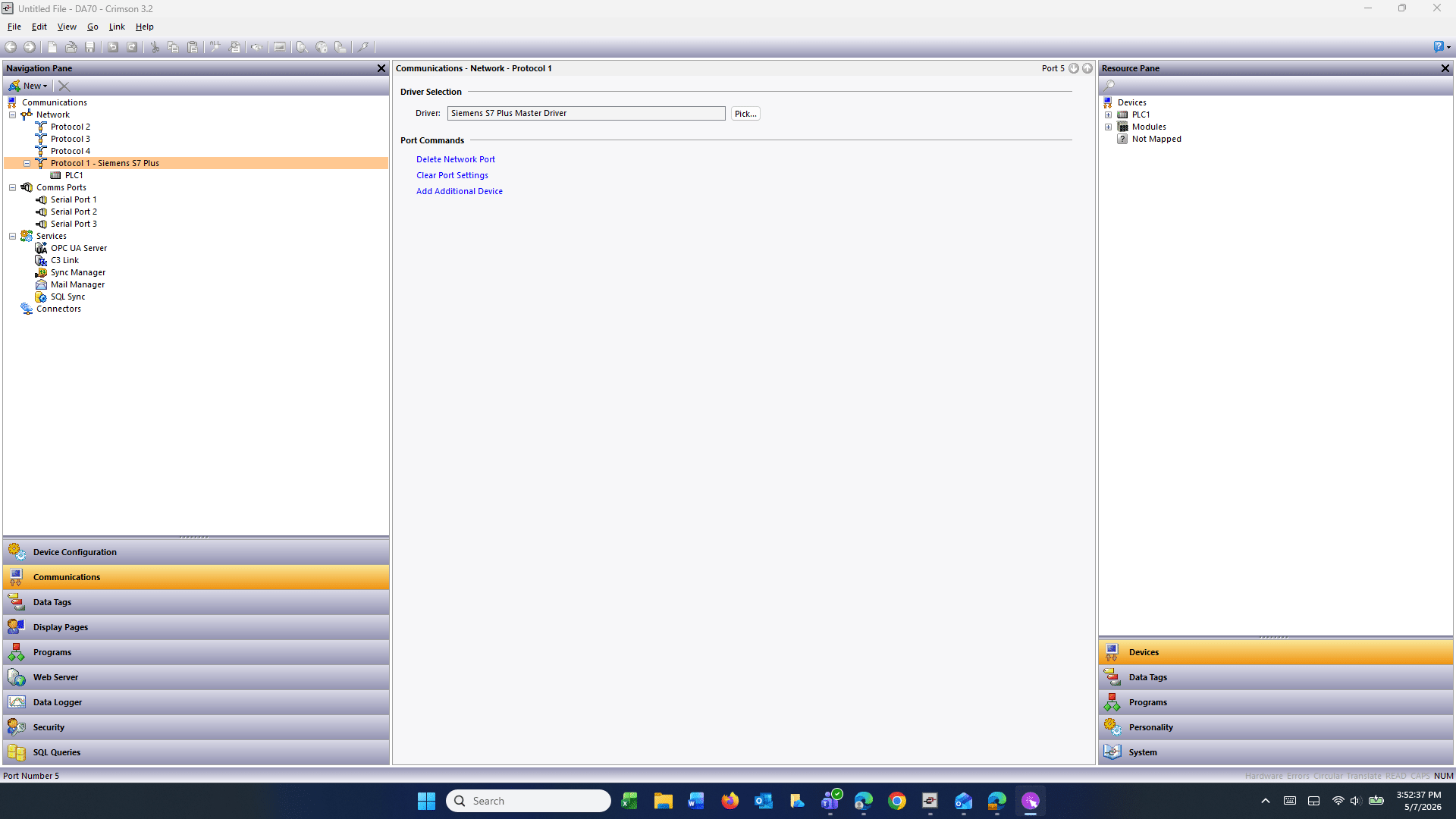
Learn how to use the Siemens S7 Plus driver to automatically generate data tags by importing an XML export. This guide shows how to choose the correct PLC context, import the tag data, and access the resulting tags within Crimson for use in graphics and other applications, minimizing manual typing and errors.
 0
Frequently Asked Questions
- What file type do I need to export from the S7 software and select when importing into the S7 Plus driver?
Export your tags from the S7 software as an XML file and choose that XML option from the dropdown when browsing/importing the file.
- How do I import all tags at once versus only specific tags?
After importing the XML, a box appears showing the PLC and individual tags. To import all tags highlight the PLC name and click Add (this places all tags into the Create column). To import single tags, highlight individual tags and click Add to place just those into the Create column. Then click Create to make the tags.
- I completed the import but can't find my tags — where should I look in Crimson?
Open Data Tags below, click the folder with the same name as your PLC, then click Symbols and select the name of the file you imported. Your tags will be listed there and are ready to use in graphics and other applications.
- What steps or confirmations are required during the import/create process (troubleshooting tips)?
Make sure you selected the correct PLC name and used Browse to pick the exported XML file (the imported file path will appear). Click Create Data Tags, add the PLC or tags into the Create column, then click Create. When the warning popups appear, confirm by clicking Yes. If tags still aren't visible, re-check that you completed each of these steps and then view Data Tags > [PLC folder] > Symbols > [imported file name].
Previous
Panel Meter Crossover Access Database and How to Use it...
Next
Allen-Bradley - AB L5K Plus Driver in Crimson 3.2 Setup and Use
Not finding what you are looking for?
Reach out to our support team