
How to Update the firmware of your Ewon Edge
Navigate to https://www.ewoncloud.com and sign into your Ewon Cloud Account
Once signed in, navigate to your Ewon Edge you would like to update. This can be done in the Machine list, or through the Cluster the Ewon Edge is assigned to. Once located left-click on your Ewon Edge.
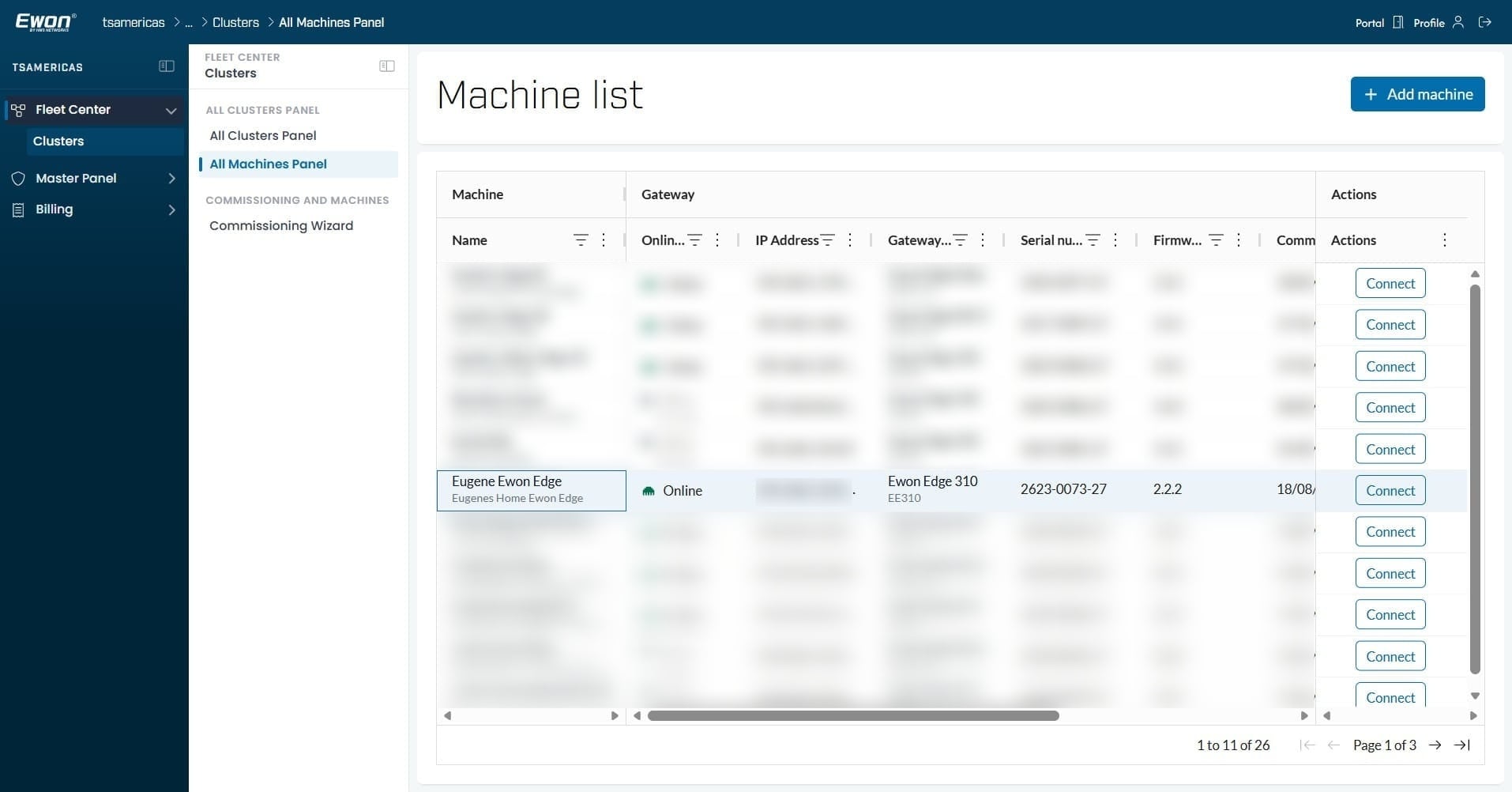
After selecting your Ewon Edge device, navigate to Gateway
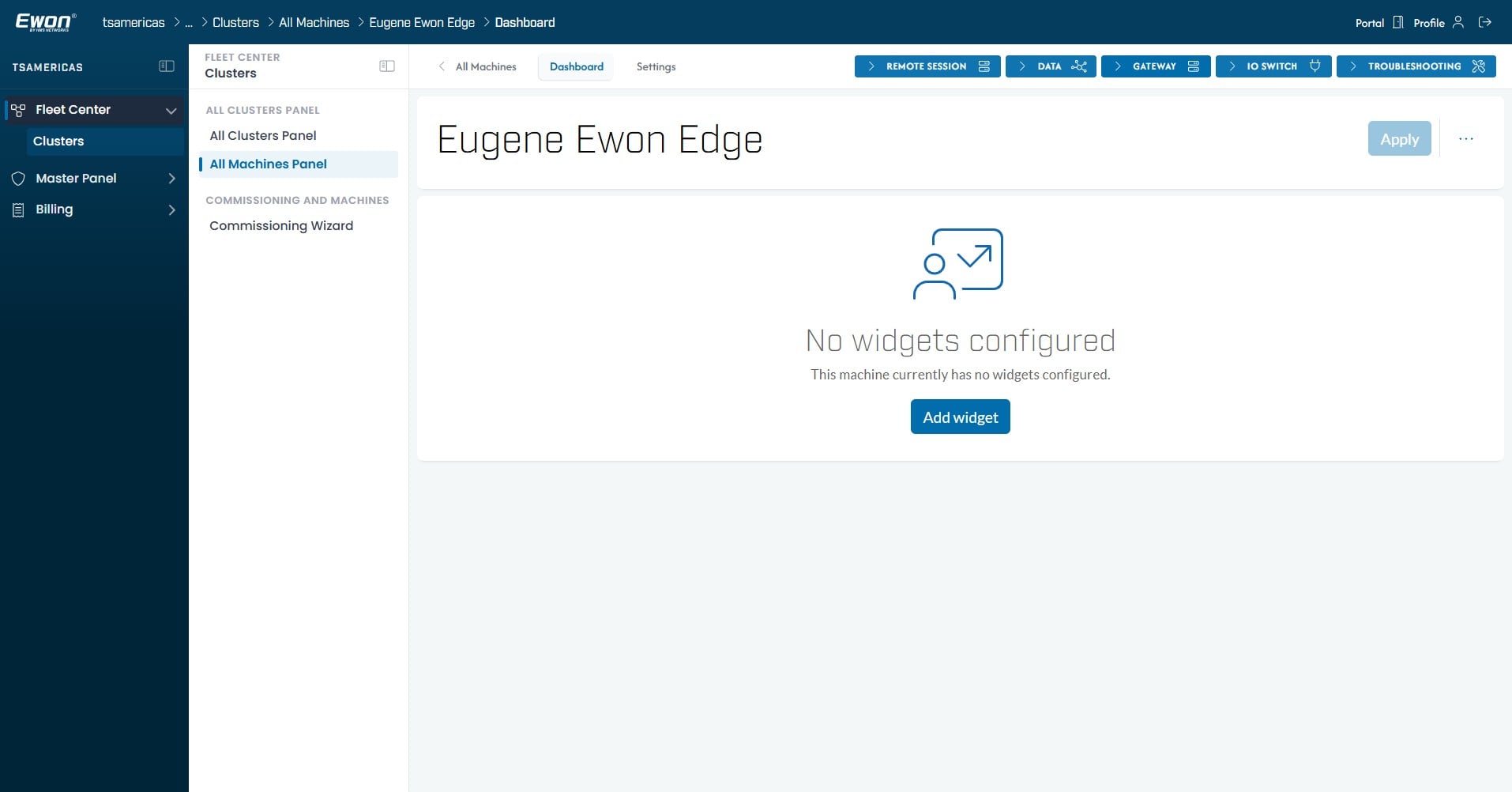
Inside your Ewon Edge's Gateway settings, you will see an overview of your device. If your current firmware version is out of date, you will notice an Orange Shield Icon next to your Gateway's firmware, recommending updating your firmware for the latest security updates and bug fixes.
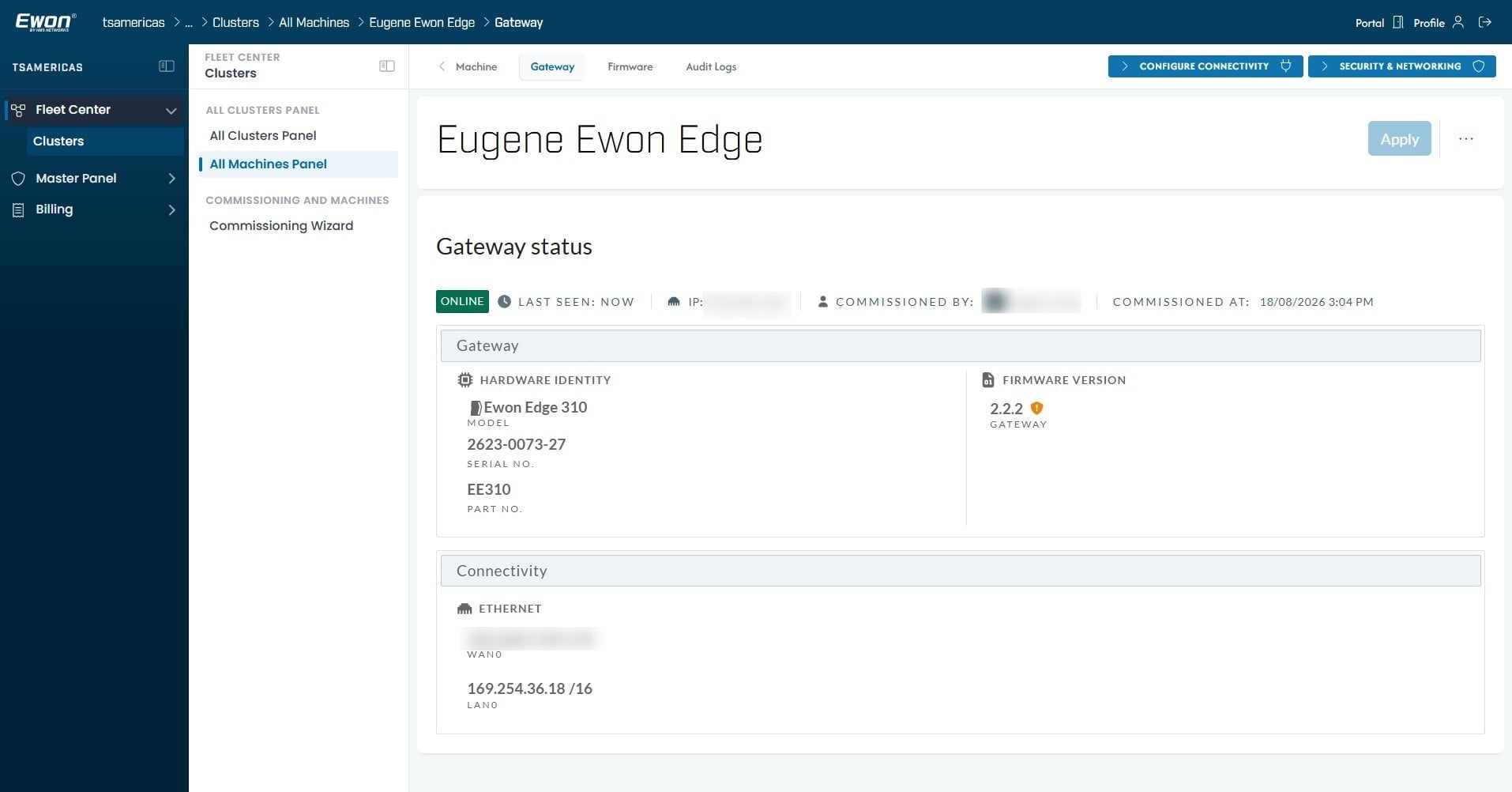
Navigate to the Firmware Tab
Inside the firmware menu, you can choose to push an update to your device remotely over Ewon Cloud, or to download the latest firmware file for a manual update via USB.
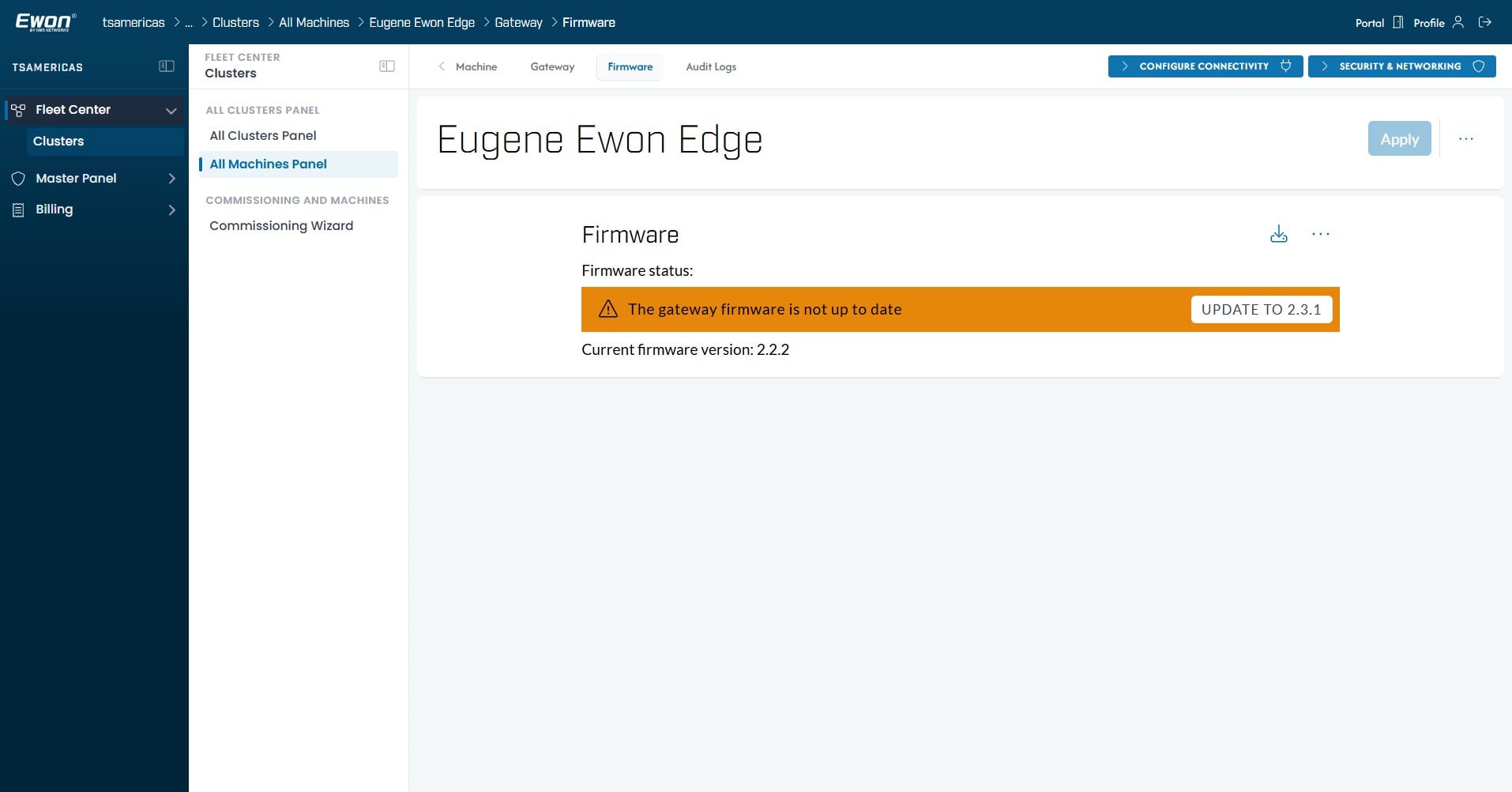
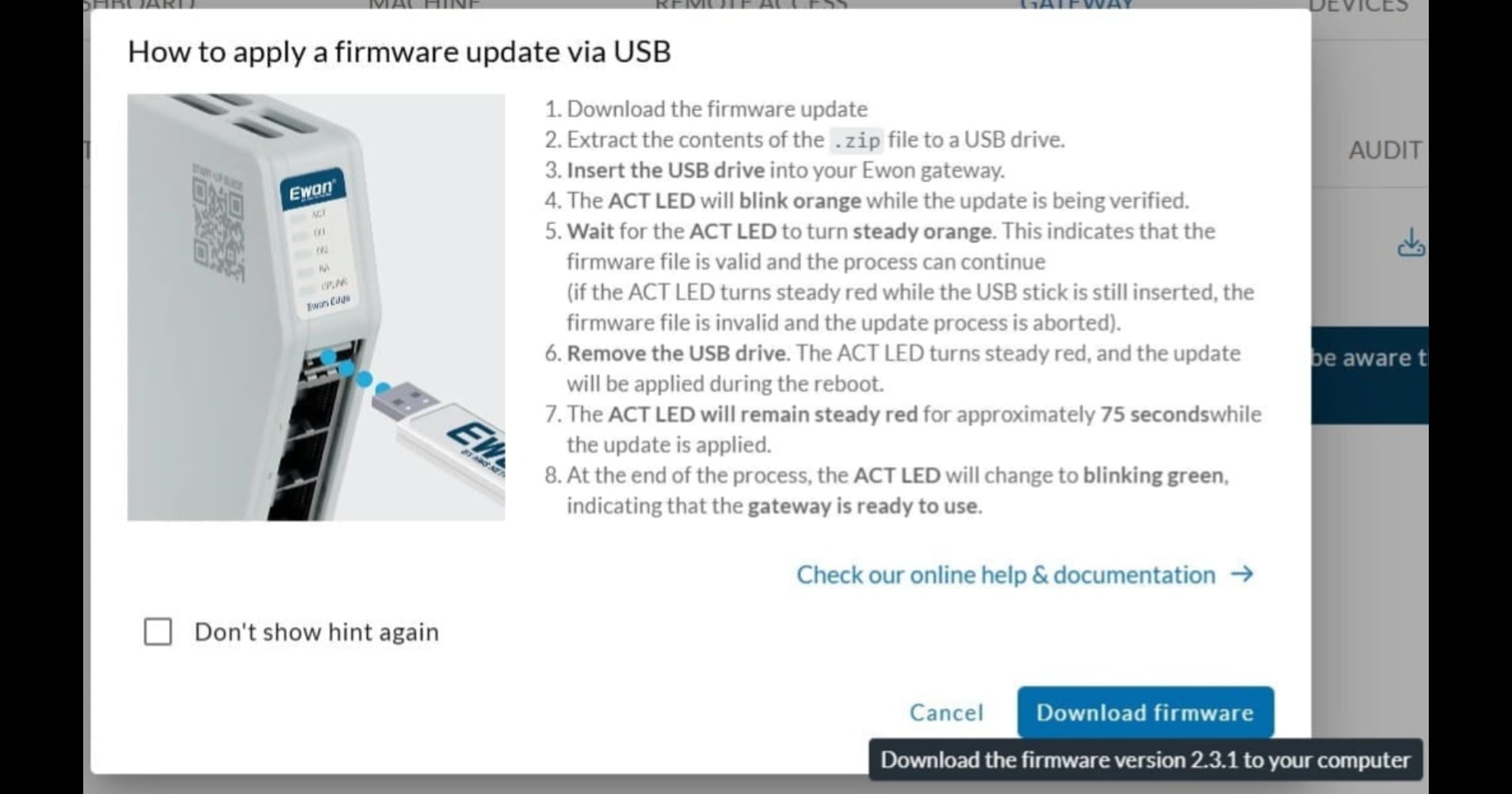
For downloading via USB, select the download icon here.
For applying a firmware update via USB, please follow the instructions provided
To push an update remotely through Ewon Cloud to your Ewon Edge device, select "Update to [Latest Firmware Version]".
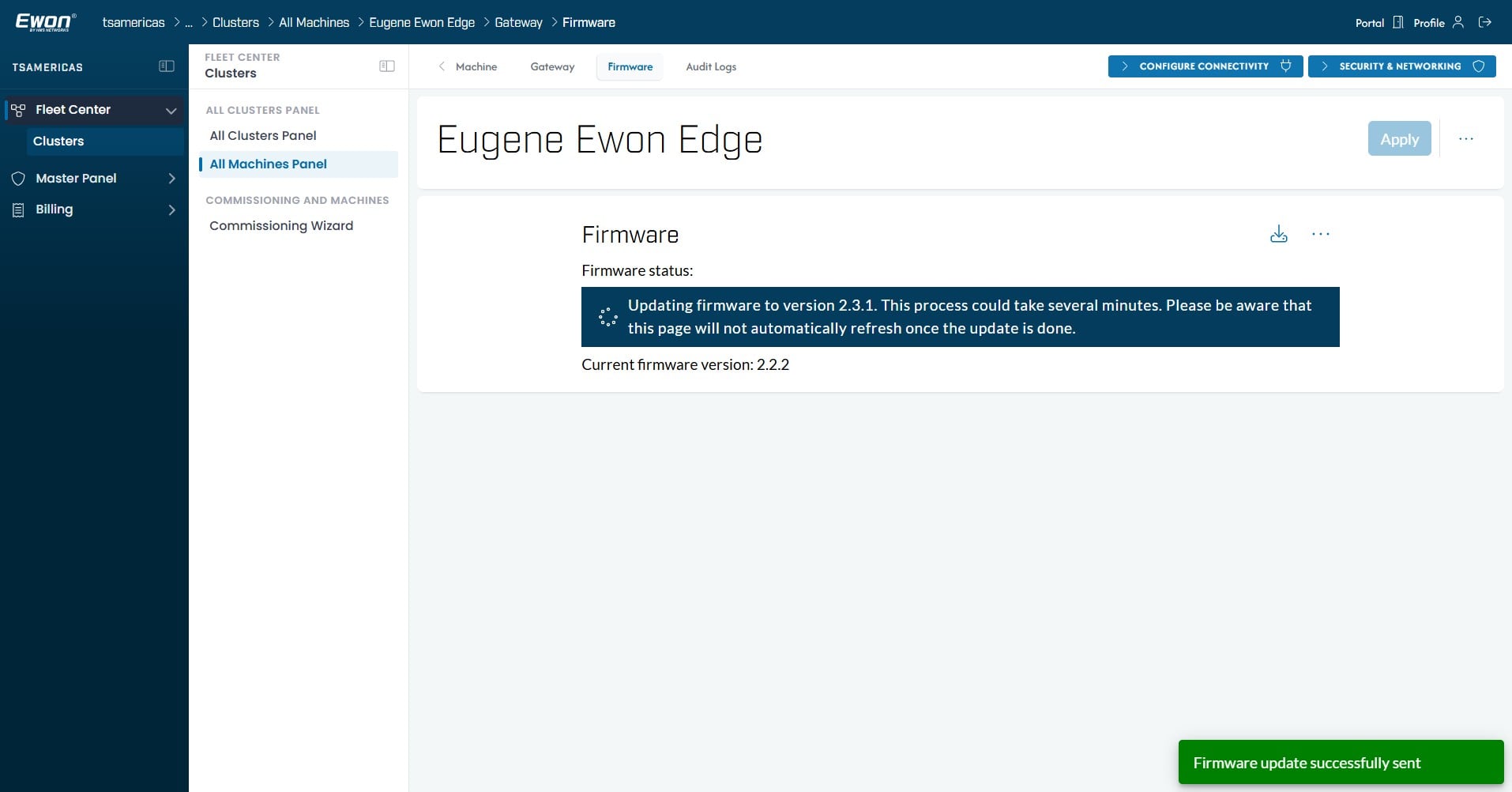
Once the update has been pushed, you will be notified if the firmware update is successfully sent. If so, your device will begin the updating process. This may take several minutes. This page will also not automatically refresh when complete.
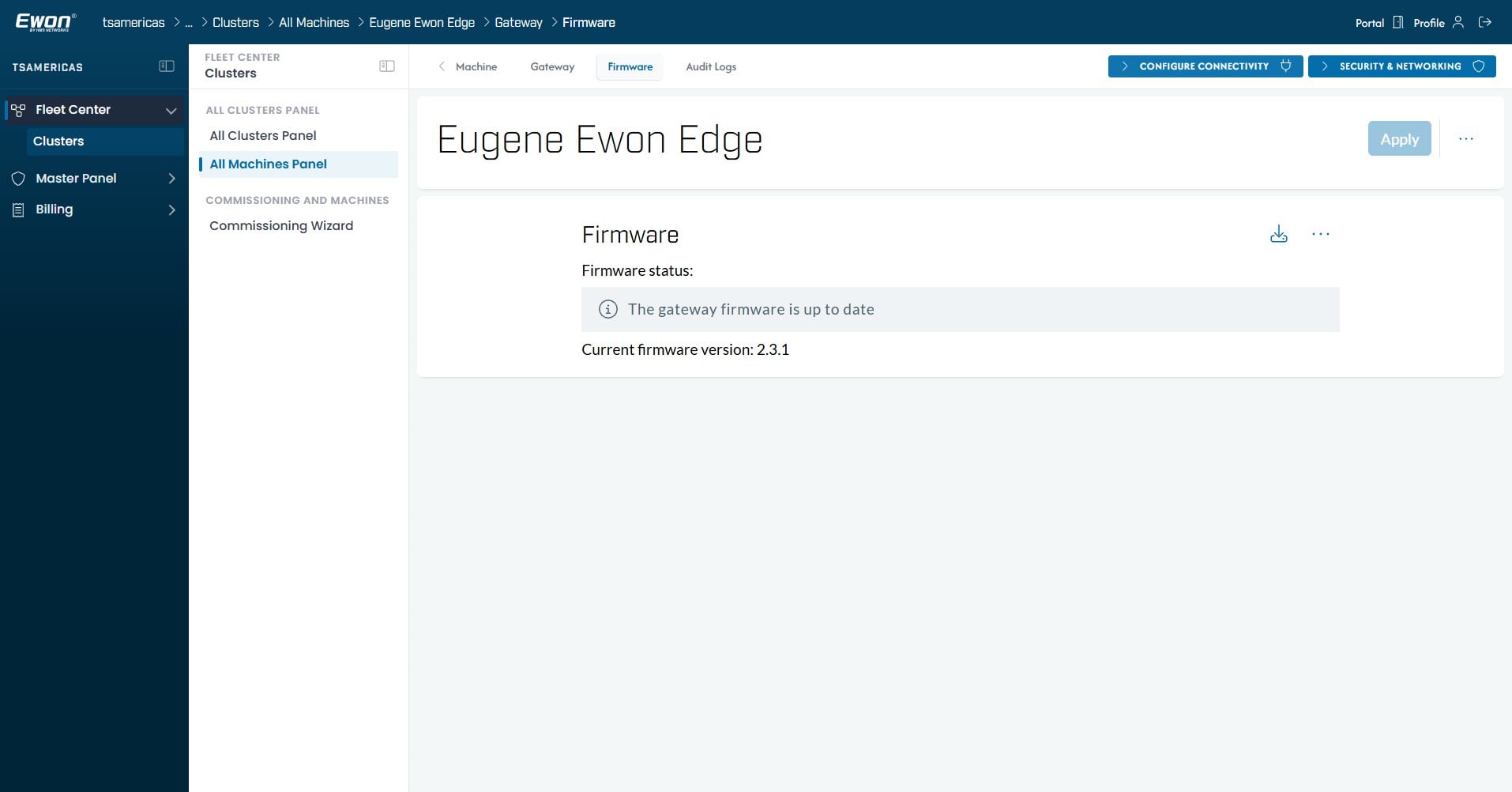
Once the update is complete, you can refresh the page and should now see your Ewon Edge's firmware is now up to date.
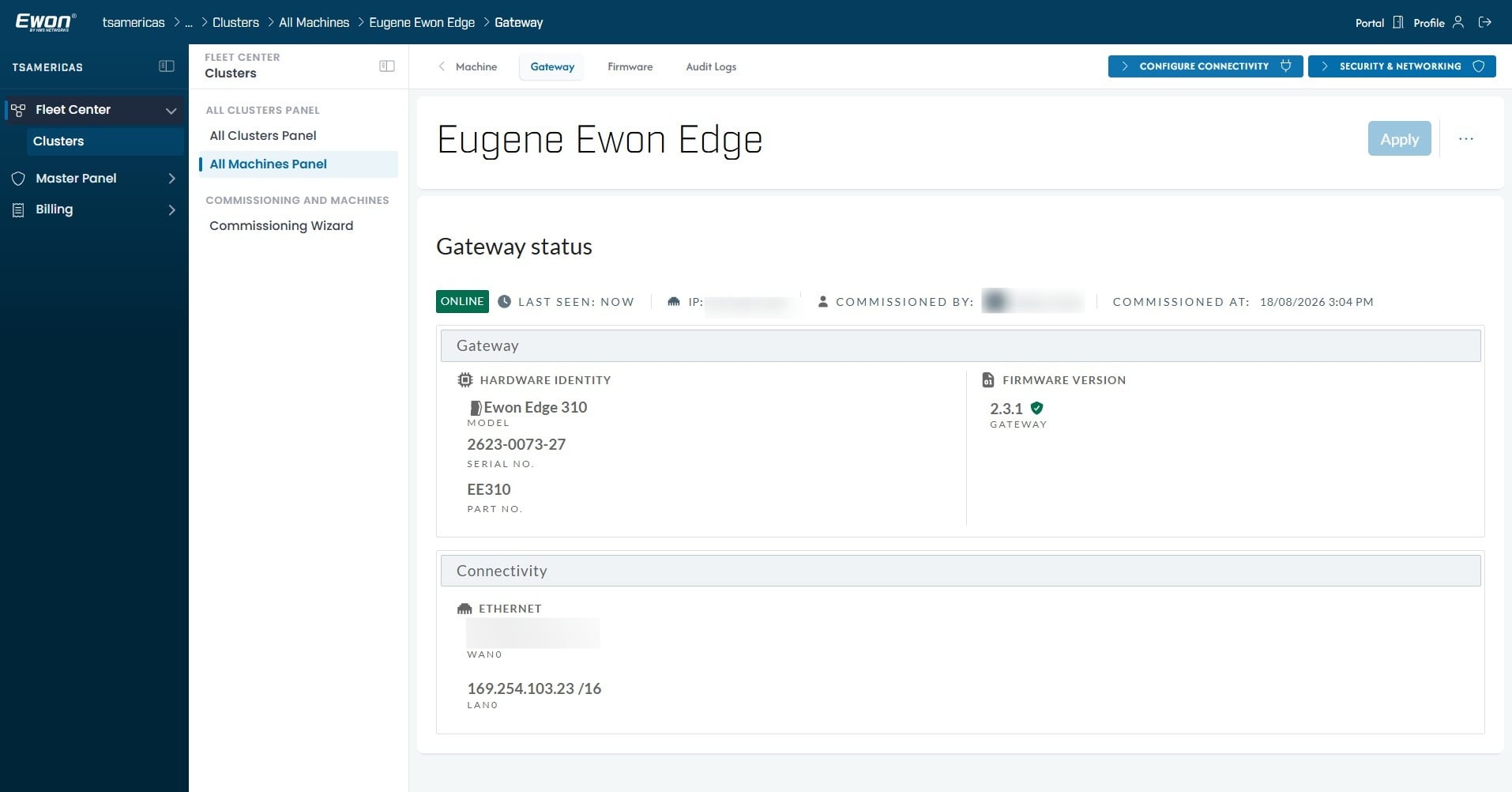
Your Ewon Edge's gateway page will also reflect that your Edge is up to date with a Green Shield next to the firmware version.
Not finding what you are looking for?
Reach out to our support team